Jarvis - Cyber Security Services Elementor Template Kit
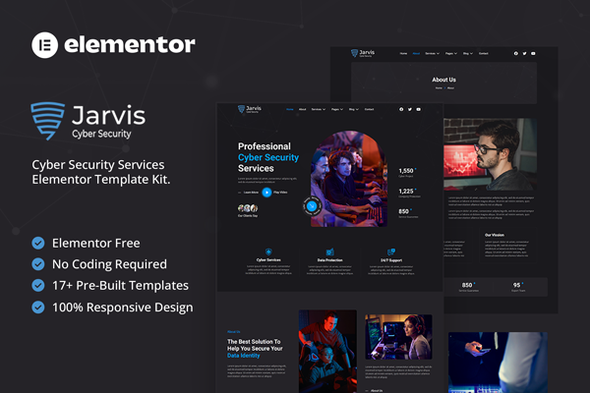

Jarvis is a modern Elementor Template Kit built specifically for cyber security companies, IT solution providers, and technology consultants. Featuring a sleek and professional design, Jarvis helps you establish a powerful online presence that conveys trust, innovation, and digital protection.
With 17+ beautifully crafted templates, Jarvis makes it easy to build a professional and fully responsive website—no coding required. Effortlessly customize each section to match your brand identity and showcase your services, expertise, and case studies with confidence.
Important: This is an Elementor Template Kit. Do not use WordPress Tools > Import. Install the Template Kit Import plugin (Plugins > Add New > search “Template Kit Import” by Envato), then go to Tools > Template Kit to import.
Features:
- Fully With Elementor Free Version (Elementor Pro is not required)
- Simple, Modern and Clean Design
- No Coding Knowledge Required
- 17+ Ready To Use Templates
- Responsive & Retina Ready
- Easy & Fully Customizable
Templates Include:
- Global Kit Styles
- Home
- About
- Services
- Services Detail
- Our Works
- Pricing
- Team
- Testimonials
- Blog
- Single Post
- Contact
- Form Contact
- FAQ
- 404 Page
- Header
- Footer
Plugins installed with kit:
- Jeg Elementor Kit
- MetForm
How to Use Template Kits:
This is not a WordPress Theme. Template kits contain the design data for Elementor and are imported using the Template Kit Import plugin via Tools > Template Kit.
- Plugins > Add New → search “Template Kit Import” (by Envato) → Install & Activate
- Go to Tools > Template Kit
- Upload your Template Kit ZIP
- Click “Install Requirements”
- Import “Global Kit Styles” first, then the pages/parts you need
Help & Support
Need more help? Choose an option below:
For further support, go to Elementor > Get Help in WordPress menu.
How to Import Metforms
- Import the metform block templates
- Import the page template where the form appears and right-click to enable the Navigator
- Locate and select the Metform widget and click Edit Form. Choose New, then Edit Form. The builder will appear
- Click ‘Add Template’ grey folder icon.
- Click ‘My Templates’ tab.
- Choose your imported metform template, then click ‘Insert’ (click No for page settings).
- Once the template is loaded, make any desired customizations and click ‘Update & Close’ The form will appear in the template
- Click Update
This Template Kit uses demo images from Envato Elements. You will need to license these images from Envato Elements to use them on your website, or you can substitute them with your own.
FAQ
- Can I import via WordPress Tools > Import? No. That importer handles WXR posts/pages. This is an Elementor Template Kit and must be imported with the Template Kit Import plugin via Tools > Template Kit.
- Do I need Elementor Pro? No, this kit is built for Elementor Free unless otherwise noted.
- My pages don’t look like the demo. Go to Tools > Template Kit and click Install Requirements, then import Global Kit Styles first before importing pages/parts.
$21 |
Download |
0 average based on 0 ratings.

| Last Update | 2022-12-15 |
| Created | 2022-12-15 |
| Sales | 4 |
| Discussion | Comments |
| Kit Certified | No |
| Requires Premium Plugins | |
| Software Version | Elementor 3.10.x |
| Template Kit Type | Envato Template Kit |


