Grand - Real Estate & Property Elementor Template Kit
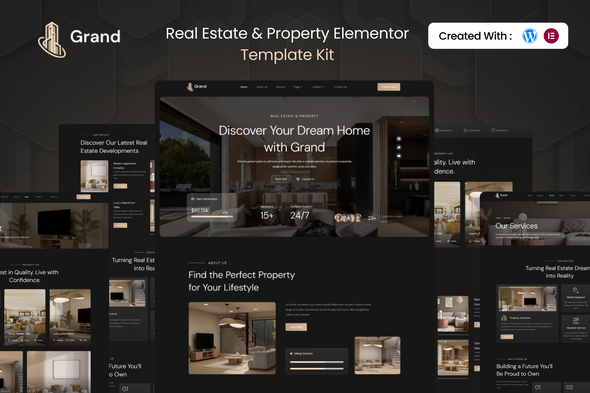


Grand – Real Estate & Property Elementor Template Kit
Grand is a sleek and modern Elementor Template Kit specially designed for real estate agencies, property listings, architects, and housing developers. With its elegant design and professional layouts, Grand helps you build a powerful website to showcase properties, highlight agents, and simplify the buying or renting process for clients.
Features:
- 16+ ready-to-use templates
- Unique & Clean Modern Design
- Modern design based on design system
- Using Free Plugins (Elementor Pro is not required)
- Fully Responsive Layout
- Fully Customizable
Templates Included:
- Global Theme Style
- Homepage
- About Us
- Services
- Property List
- Project
- Testimonials
- Pricing Plans
- FAQs
- Teamwork
- 404 Page
- Coming Soon
- Contact Us
- Header
- Footer
- Metform Contact
Required Plugin(included):
- Elementor
- Elementskit Lite
- Metform
How to Use Template Kits: This is not a WordPress Theme. Template kits contain the design data for Elementor only and are installed using the envato Template Kit Import plugin for WordPress or directly through Elementor.
Detailed Guide:
For further support, go to Elementor > Get Help in WordPress menu.
How to Import Metforms If you have Elementor Pro, skip install of Metform and form blocks.
- Import the metform block templates
- Import the page template where the form appears and right-click to enable the Navigator
- Locate and select the Metform widget and click Edit Form. Choose New, then Edit Form. The builder will appear
- Click ‘Add Template’ grey folder icon.
- Click ‘My Templates’ tab.
- Choose your imported metform template, then click ‘Insert’ (click No for page settings).
- Once the template is loaded, make any desired customizations and click ‘Update & Close’ The form will appear in the template
- Click Update
Setup Global Header and Footer in ElementsKit If you have Elementor Pro, headers and footers may be customized under Theme Builder.
- Import the header and footer template
- Go to ElementsKit > Header Footer and click Add New (if prompted with a wizard, you may click Next through it without taking any action)
- Title the header, leave Entire Site selected and toggle Activation to On
- Click the gray Edit Content button to load the builder
- Click the gray folder icon and select the header template to import, select your menu in the nav element and click Update.
- Repeat for Footer
*IMPORTANT: *
This Template Kit uses demo images from Envato Elements. You will need to license these images from Envato Elements to use them on your website, or you can substitute them with your own.
$25 |
Download |
0 average based on 0 ratings.

| Last Update | 2025-10-31 |
| Created | 2025-10-31 |
| Sales | 15 |
| Discussion | Comments |
| Kit Certified | No |
| Requires Premium Plugins | |
| Software Version | Elementor 3.10.x |
| Template Kit Type | Envato Template Kit |


