Mailonix - WooCommerce Email Template Customizer
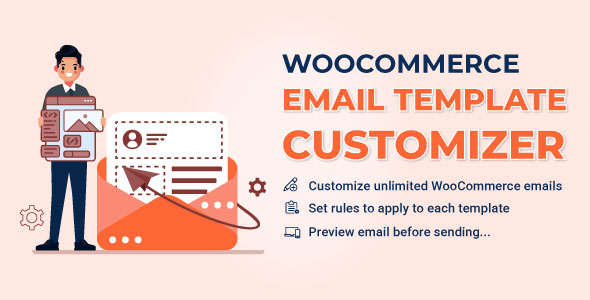


If the default email template of WooCommerce looks plain to you, and you are looking for a way to customize WooCommerce emails, here is what you need. Mailonix – WooCommerce Email Template Customizer is a helpful tool that helps you build and customize WooCommerce emails. The plugin provides sufficient basic elements and WooCommerce elements as well as developmental tools for users to build a complete email. You can easily drag and drop, edit, and customize the layouts/contents inside the email templates with no coding knowledge required. Try our plugin to make the template look friendly and match your store design, and customize WooCommerce emails sending to customers all you want, effortlessly.
WooCommerce Email Template Customizer
Transform your WooCommerce emails into beautiful, professional-looking templates that match your brand. With the Email Template Customizer, you can easily design and personalize order emails, notifications, and customer messages to create a more engaging and consistent shopping experience.
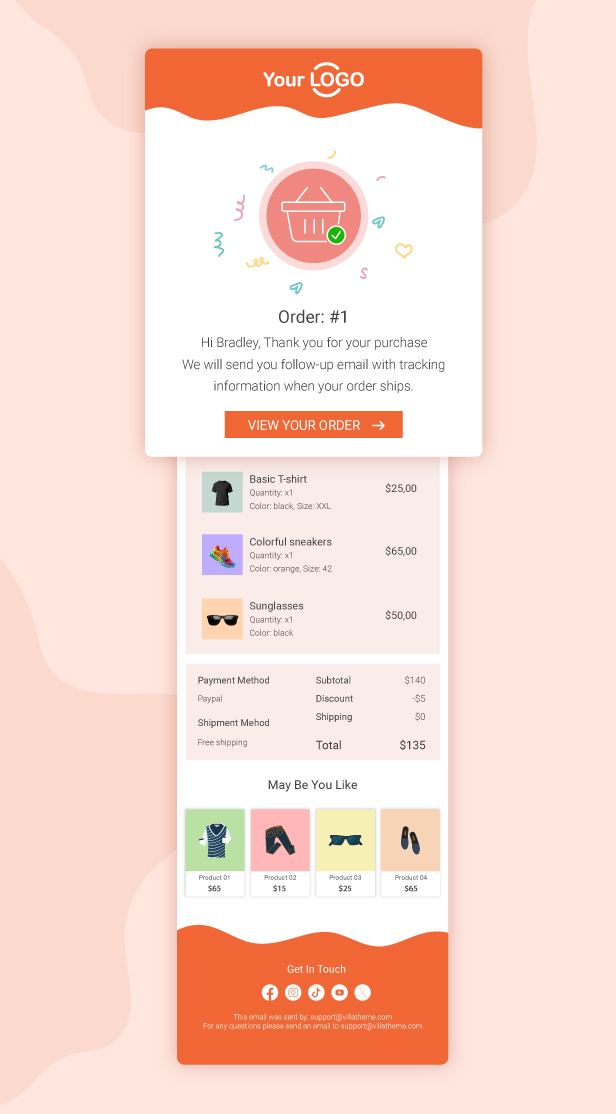
Full WooCommerce Email Support
This feature supports all WooCommerce email types, including new account creation, password reset, new order, processing order, completed order, on-hold orders, and more. You can fully customize each email to match your brand style and improve communication with your customers at every stage of their journey.
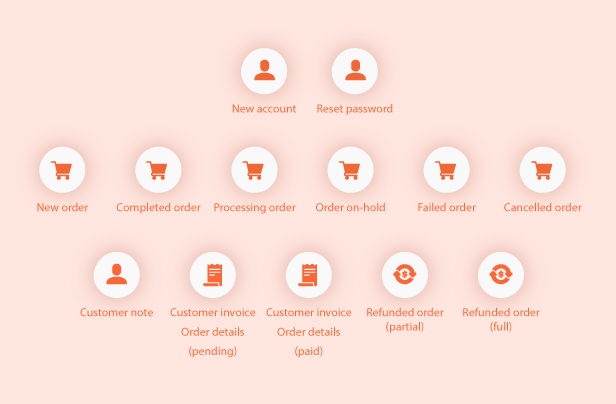
Unlimited Email Templates
Create as many email templates as you need without any limitations. This feature gives you full freedom to design different templates for various WooCommerce emails, campaigns, or customer segments, helping you deliver a more personalized and consistent brand experience.

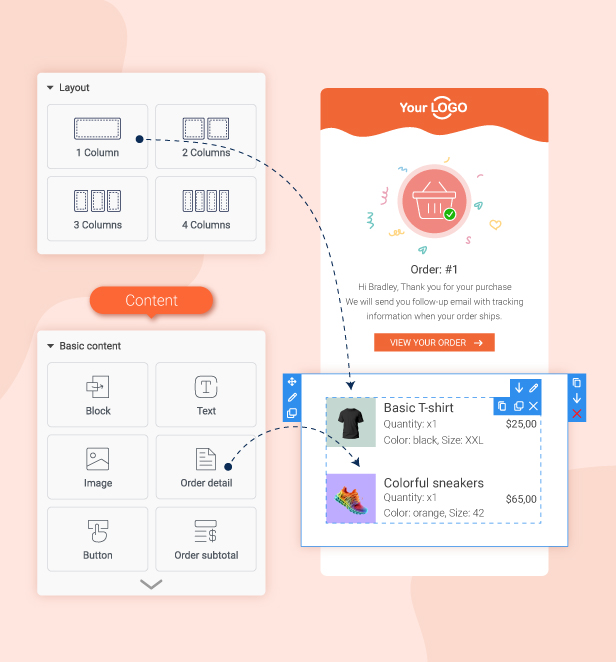
Drag & Drop Email Builder
Easily customize your emails using a simple drag & drop interface. Add, remove, and rearrange elements like text, images, buttons, and sections without any coding skills. This helps you quickly create professional and visually appealing WooCommerce emails that look consistent and well-designed.
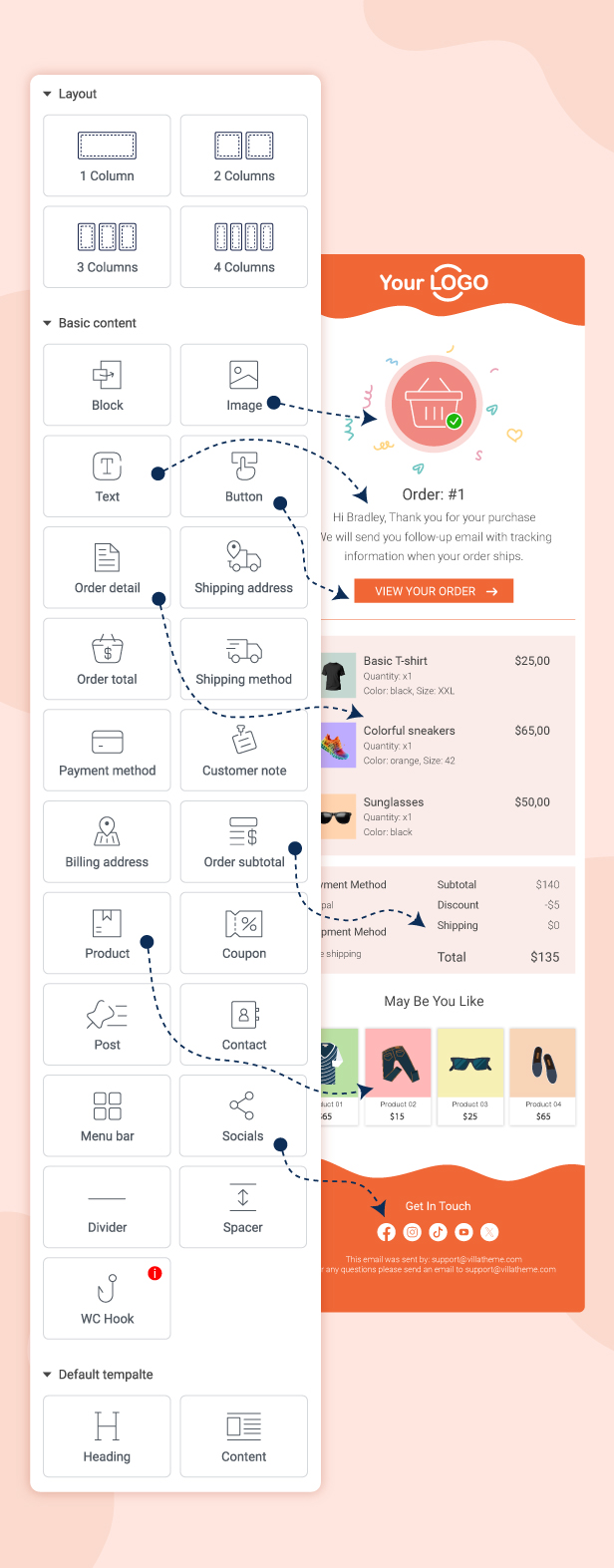
Rich Email Elements for Flexible Customization
A wide variety of elements is available to help you fully customize your emails the way you want. You can easily add and arrange different components such as text blocks, images, buttons, dividers, product sections, and more, giving you complete control over the design and content of each WooCommerce email.
Smart Email Rules & Targeted Sending
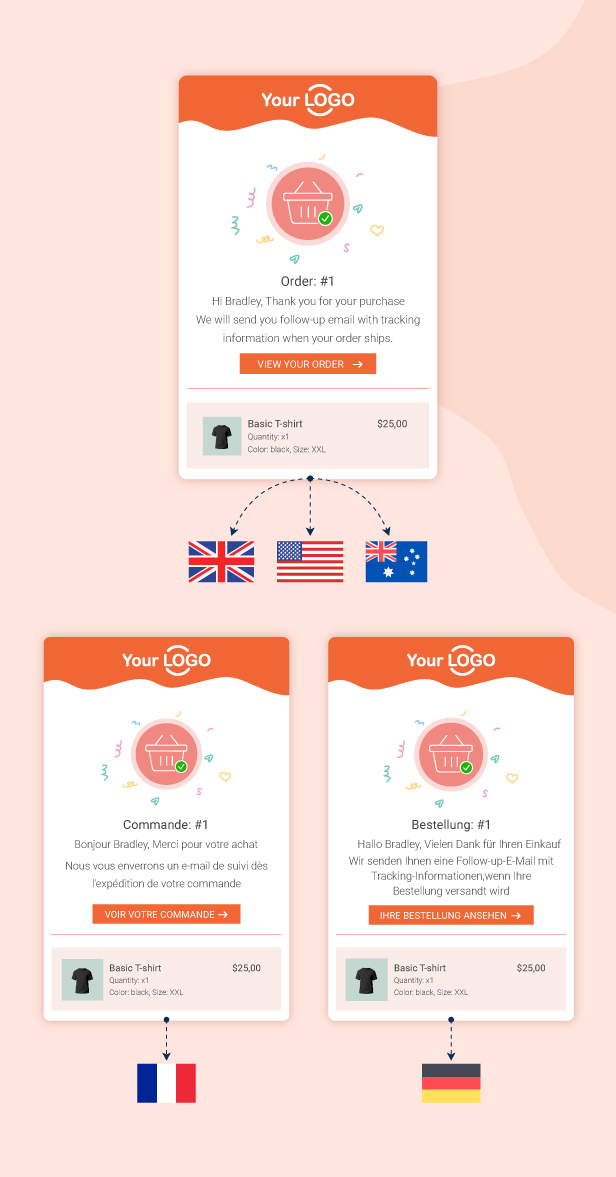
Send specific emails based on custom rules to reach the right customers at the right time. You can create conditions to control when and to whom each email is sent, and also write emails in the native language of your customers to improve clarity and engagement.
Comprehensive Email Template Management System
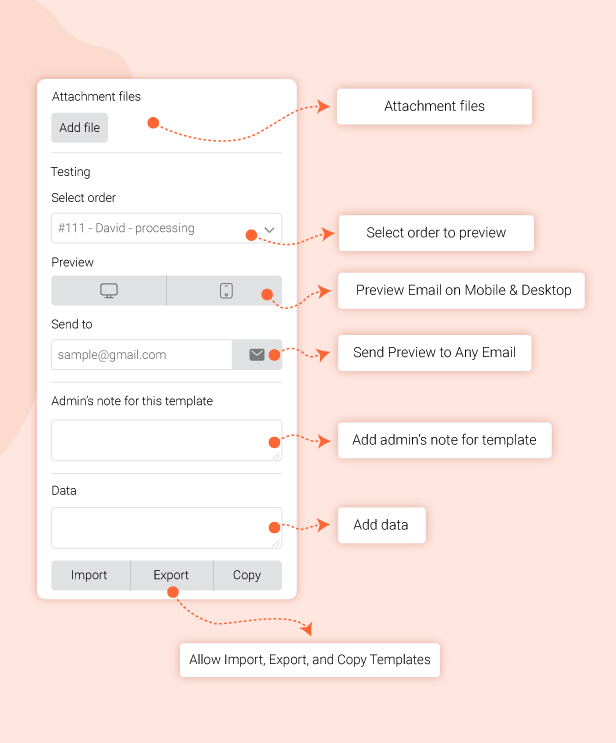
Manage your email templates with full flexibility, including file attachments, email testing, and real-time preview before sending. You can also easily import and export templates, helping you organize, reuse, and transfer designs quickly across different projects or stores.
Full RTL (Right-to-Left) Language Support
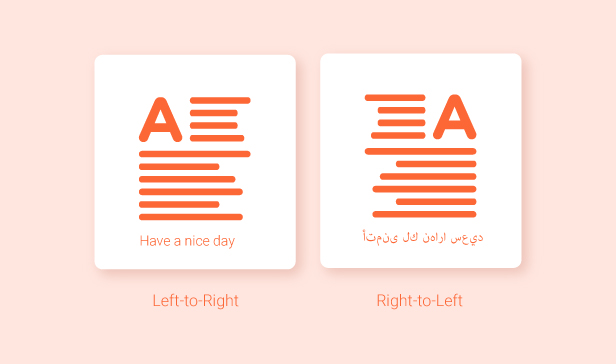
Supports both Left-to-Right and Right-to-Left text directions, allowing you to create and design emails in multiple languages seamlessly. This ensures your emails display correctly for RTL languages such as Arabic, improving readability and user experience for all customers.
Fully Responsive Email Design
Ensure your emails look perfect on all devices, including desktop, tablet, and mobile. All templates are fully responsive, automatically adjusting layout, images, and text for the best reading experience on any screen size.
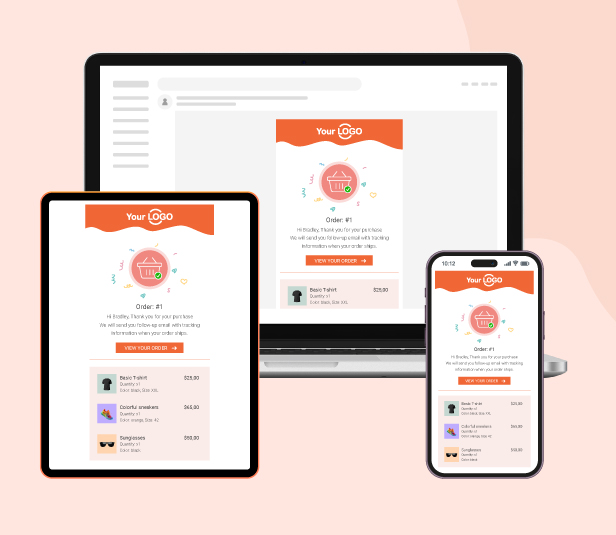
WooCommerce Email Template Customizer offers the following features:
- Create and customize WooCommerce emails with provided elements.
- Rearrange elements within templates using a simple drag-and-drop interface.
- Apply rules to each template.
- Attach files to emails for sending.
- Test emails before sending them to ensure accuracy.
- Preview emails in both Desktop and Mobile versions before sending.
- Choose the direction for language compatibility (LTR or RTL).
- Import and export templates between sites where the plugin is installed and activated.
- Create customizable blocks and add them to any template.
- Ensure responsive design across devices with the responsive point feature.
- View reports on customer interaction with suggested products, including clicks and orders.
Customize WooCommerce emails with Basic elements
The plugin provides Basic elements that you can use to customize WooCommerce emails with:
- Text: Add content with text element to the template and customize the element with: the text color, font size, alignment, border width, insert/edit link, insert/edit image, shortcode, info icon, social icon, border style, border color, background color, text padding, and text margin.
- Divider: Add a single line divider to the template and choose a style for the divider. Similar to text, the admin can customize the style, width, height, color, alignment, margin, and padding of the divider.
- Socials: Add social icons to customize WooCommerce emails, and enter your URL links in the placeholder.
- Image: Add an image to the email template and adjust its size and alignment, border style, border color, background color, text padding, and text margin.
- Button: Add and customize the button: Name, the link of a button, style the border, alignment, background, and padding.
- Menu bar: Add and customize the menu bar or name the navigation bar that includes links to the most important sections of the site for instance Home, Shop, Contact…
- Contact: Display contact information with icons in the email template.
- Spacer: Add a space between elements and customize its height, borders with style and color, and the background color.
Customize WooCommerce emails with WooCommerce elements
- Order detail: This element displays the full details of orders with customization of the color, size, and alignment of the heading and details separately. Also, customize the borders, background color, padding, and margin.
- Order total: This element displays the total amount of orders. The admin can customize the color, size, and alignment of the heading and details separately as well as the borders, background color, padding, and margin.
- Order subtotal: This element helps you display specific components of orders: including Subtotal, discount, shipping, payment method, and order fully refunded, …then, you can customize the color, size, and alignment of the heading and details separately. Also, customize the borders, background color, padding, and margin.
- Shipping method: This element helps you display the shipping method, you can customize the borders, background color, padding, and margin.
- Payment method: This element helps you display the payment method of the order, you can customize the borders, background color, padding, and margin.
- Billing address: Displays the billing details in the email with customization of the color, size, and alignment of the heading and details separately. Moreover, customize the borders, background color, padding, and margin.
- Shipping address: Displays the shipping details in the email and customizes the color, size, and alignment of the heading and details separately as well as the borders, background color, padding, and margin.
- Products: Helps you recommend some products and redirects the customers to the single product page in your store when they click on a particular suggested product
- Coupons: This helps you display a coupon that customers get. Then, customers can copy the coupon code and apply it to their orders.
- Post: Helps you customize WooCommerce emails with your posts, then redirect the customers to those posts in your store when they click on the posts in the email.
Customize WooCommerce emails with WC Hook that can be dragged and dropped to change position
Customize WooCommerce emails with the WC Hook Element that allows you to insert content from a 3rd plugin at points wherever the hook is run.
Customize WooCommerce emails with Advanced options
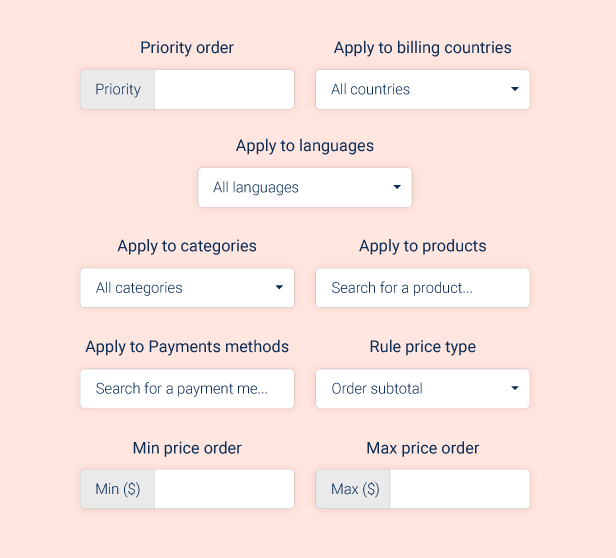
In addition, WooCommerce Email Template Customizer is integrated with some advanced options that allow you to set rules and send an email if the order matches the rules. For example, you want to send a current email template to a customer in the United States – Shoe category if the order hits a specific amount. By setting the rules, you can manage emails that will be sent to each customer’s group as you want.
- Priority: The plugin checks rules from top to bottom of the Email template list to find a matching template. When filtering email templates by type on the email list, templates with higher priority rules will be arranged to the higher position and are applied first. Go to each email template editing page to add priority for each one.
Important note: If a template includes multiple rules, for example: products, categories, and language rules…. set it with a higher priority than the templates which is applied to the global cases.
- Apply to language: This option becomes available when using a multilingual plugin like WPML, Polylang, or TranslatePress. It allows you to create different email template templates for multiple languages and assign them to specific languages. You can view our guide video on how to send multilingual email notifications with WPML for a better view.
- Apply billing countries: Select countries to which this email template is applied.
- Apply to categories: Select categories to which this email template is applied.
- Apply to products: Select products to which this email template is applied. The Product Categories rule also works with variations.
- Apply to payment methods: Select the payment methods to which this email template is applied.
- Choose the price type that is applied to min/max price orders: Select the price type to apply this template, they can be Order subtotal, Order total.
- Apply to min price order: Add the minimum order. Once the order reaches this minimum amount or higher, the template will be sent.
- Apply to max price order: Enter the maximum amount for the order. The template will be sent to when the user makes an order with the price lower or equal to this value.
With Advanced options, the admin can not only set the rules, but also select the email type, change direction (this option is helpful when you use the RTL languages), preview on different devices, and send a test email, as well as add a note for the template.
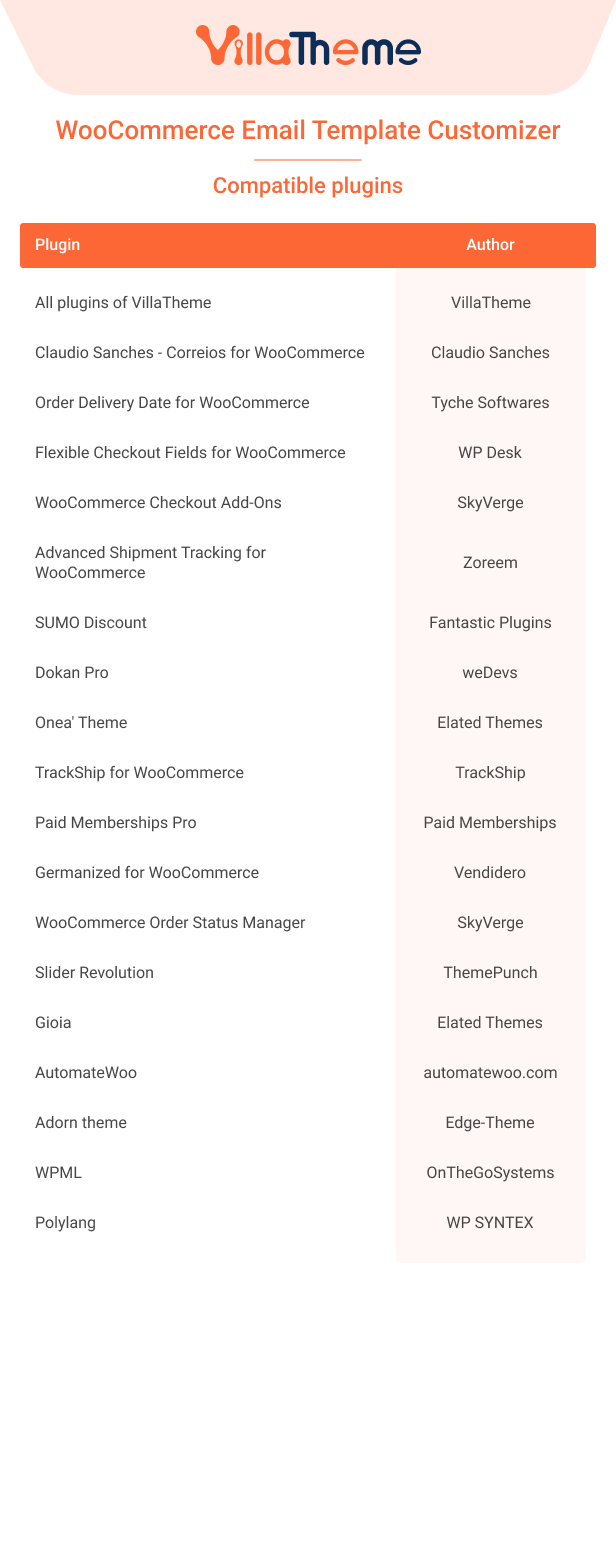
Compatible plugins:

Watch Preview to see what the plugin can do
And see this video guide for How to install and use WooCommerce Email Template Customizer, to customize WooCommerce emails.
ChangeLog
$59 |
Download |
5 average based on 96 ratings.

| Last Update | 2026-10-30 |
| Created | 2020-09-23 |
| Sales | 5106 |
| Discussion | Comments |
| Compatible Browsers | Firefox Safari Opera Chrome Edge |
| Software Version | WordPress 7.1.x WordPress 7.0.x WordPress 6.9.x WordPress 6.8.x WordPress 6.7.x WordPress 6.6.x WordPress 6.5.x WordPress 6.4.x WordPress 6.3.x WordPress 6.2.x WordPress 6.1.x WordPress 6.0.x |
| Compatible With | WooCommerce 10.x.x WooCommerce 9.x.x WooCommerce 8.x.x WooCommerce 7.x.x WooCommerce 6.x.x WPML |
| Gutenberg Optimized | Yes |
| High Resolution | Yes |
| Files Included | JavaScript JS CSS PHP |
| Video Preview Resolution |


