WooCommerce Name Your Price – Custom Pay Your Price Plugin

Boost Your Sales with Flexible Pricing – Let Customers Name Their Price!
Unlock a new level of engagement and drive more conversions with the WooCommerce Name Your Price plugin – the ultimate solution for dynamic pricing! This powerful tool allows your customers to set their own prices for selected products. Whether you’re looking to increase sales, reach new customers, or simply offer more purchasing flexibility, WooCommerce Name Your Price gives you full control.
How It Works:
- Enable the “Pay Your Price” feature for products/product categories in your store.
- Set minimum and maximum price limits to stay within your profit margins.
- Customers enter their preferred price — if it’s within the allowed range, the product is instantly added to their cart.
- If the offer falls outside your set range, a custom message encourages them to adjust their price.
Key Features:
- Empower your customers to offer a custom price.
- You can set a minimum, maximum, and suggested price for the product.
- Show/hide the suggested, and minimum prices to the customer.
- Per-product Category configuration to enable name your price for multiple products from one location.
- Customize error messages and the Add to Cart Button text.
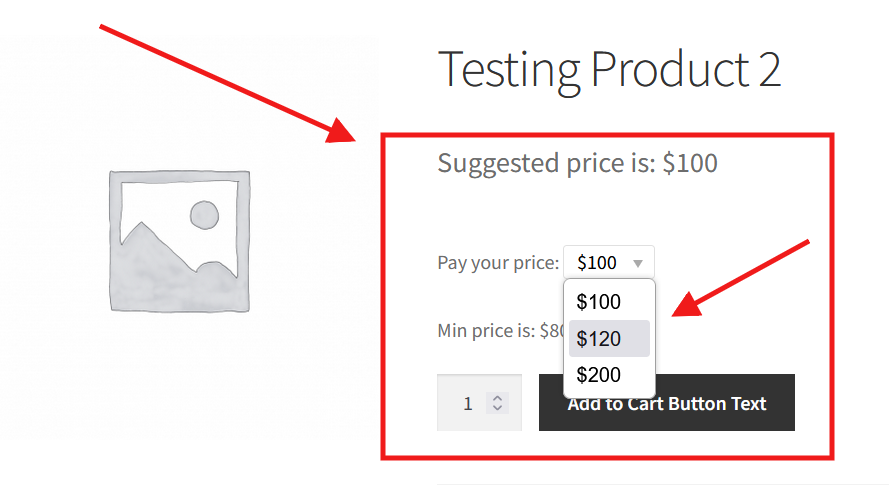
- Pricing types either let the customer enter the price (open price) or show a drop-down with pre-entered values (set inside the product configuration).
- Supports both single and variable products (product variations).

How can the “WooCommerce Name Your Price” plugin benefit your business?
- Easily collect donations by letting supporters choose how much to contribute.
- Generate revenue from products you might otherwise give away by allowing customers to set a fair value.
- Attract new customers with inclusive, customer-driven pricing that lowers the barrier to entry.
- Expand your audience by encouraging first-time buyers to engage with your products on their terms.
- Gain valuable insights into customer behavior by analyzing the prices they’re willing to pay.
How To Install
- Download the .zip file from your CodeCanyon account.
- Go to WordPress Admin > Plugins > Add New and Upload Plugin with the file you downloaded with the Choose File button.
- Install Now and activate the plugin.
Plugin in the action
The customer will either see an input field for the price or a drop-down with the admin-entered values (depending on the configuration):
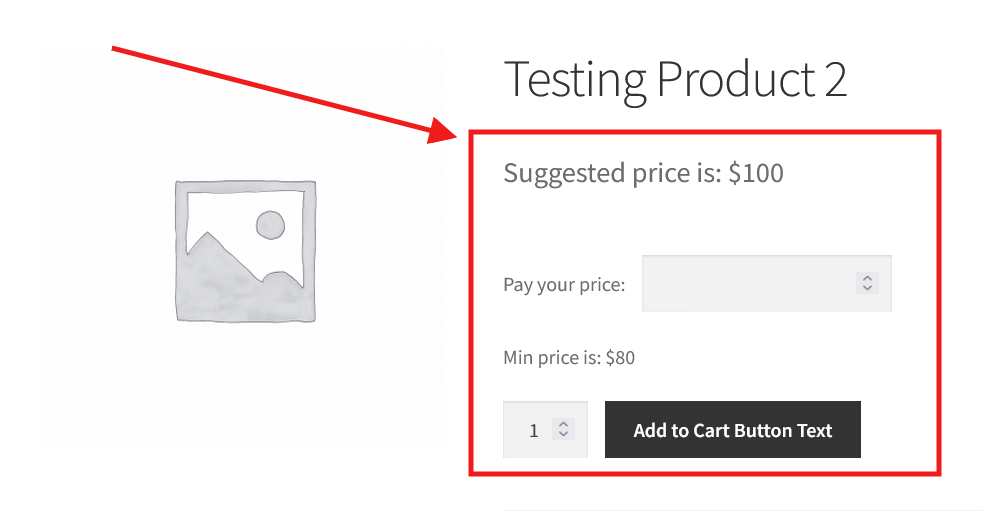
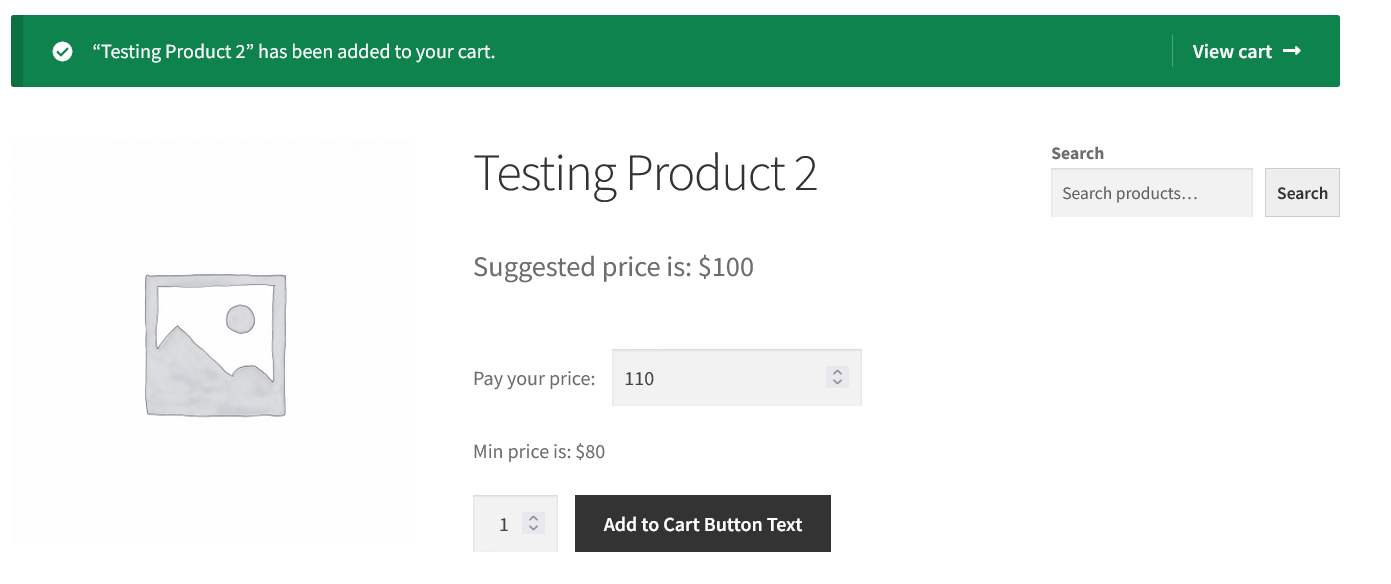
The customer can decide their price and add the product to the cart.
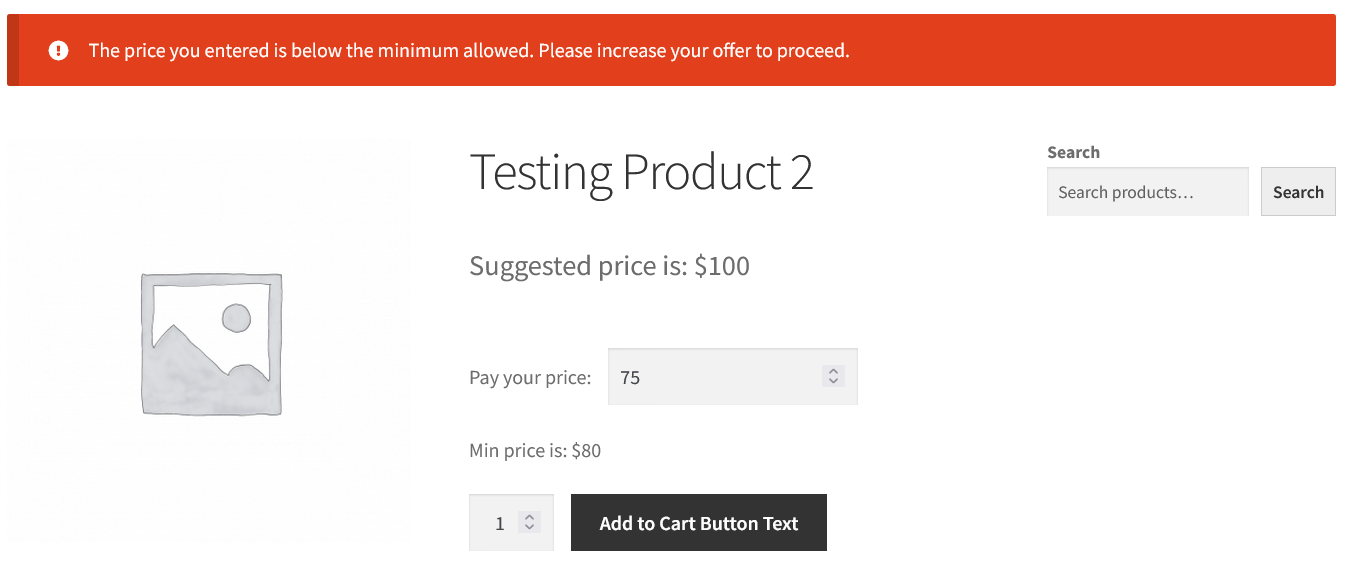
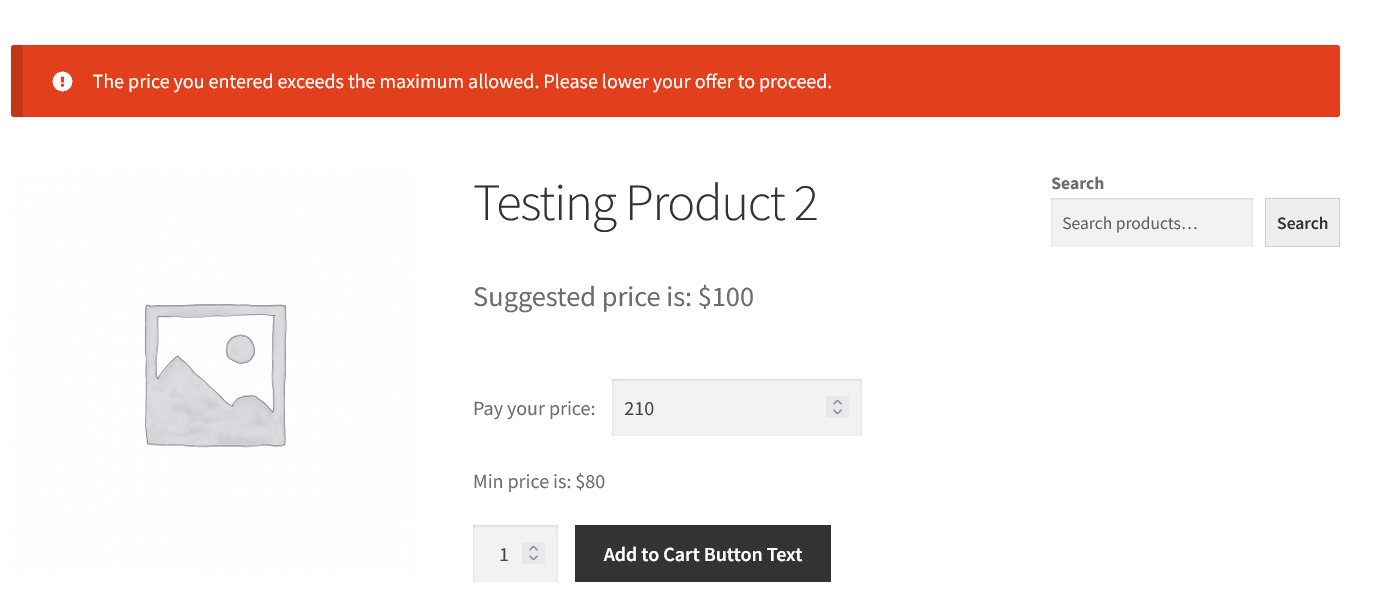
Price validation
To ensure data integrity and prevent unauthorized pricing manipulation, server-side validation is implemented to verify the entered price before the product is added to the cart. This validation checks that the submitted price falls within the predefined minimum and maximum limits set by the store admin for each product/product category. If the price is outside this allowed range or is otherwise invalid (e.g., negative, non-numeric, or empty), the system rejects the request and returns a clear error message. Server-side validation is essential for security, as it protects against attempts to bypass client-side restrictions using browser tools or custom scripts, ensuring that only legitimate pricing offers are accepted and processed.
Backend settings
A new menu item will be available inside the admin panel after the plugin installation.
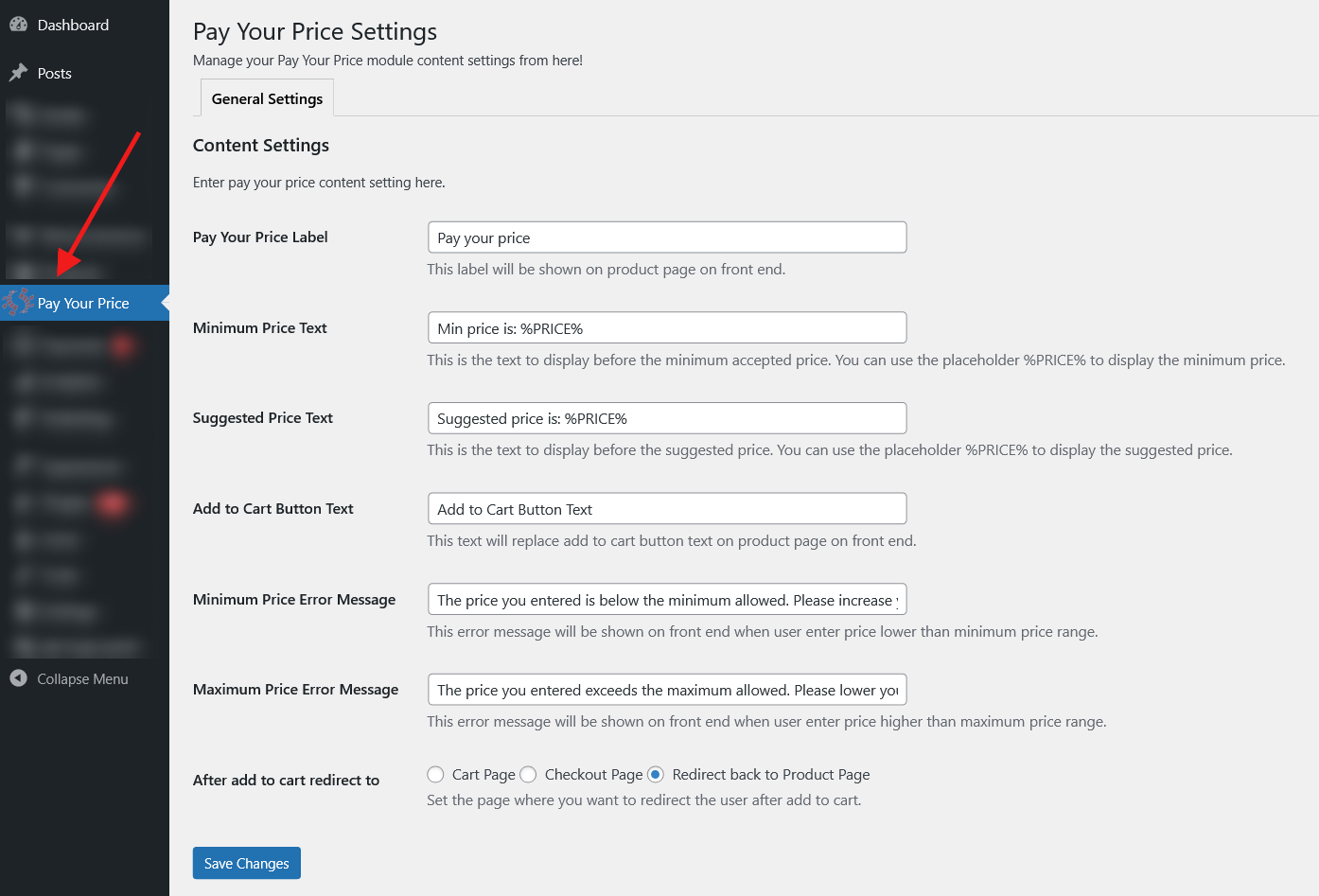
Set different texts for the specific locations. For the suggested, and minimum price text, you can use the placeholder PRICE to display the price between the text.
Product-based configurationEnable “Pay Your Price” for a product by selecting the “Enable Unique” option from the drop-down.
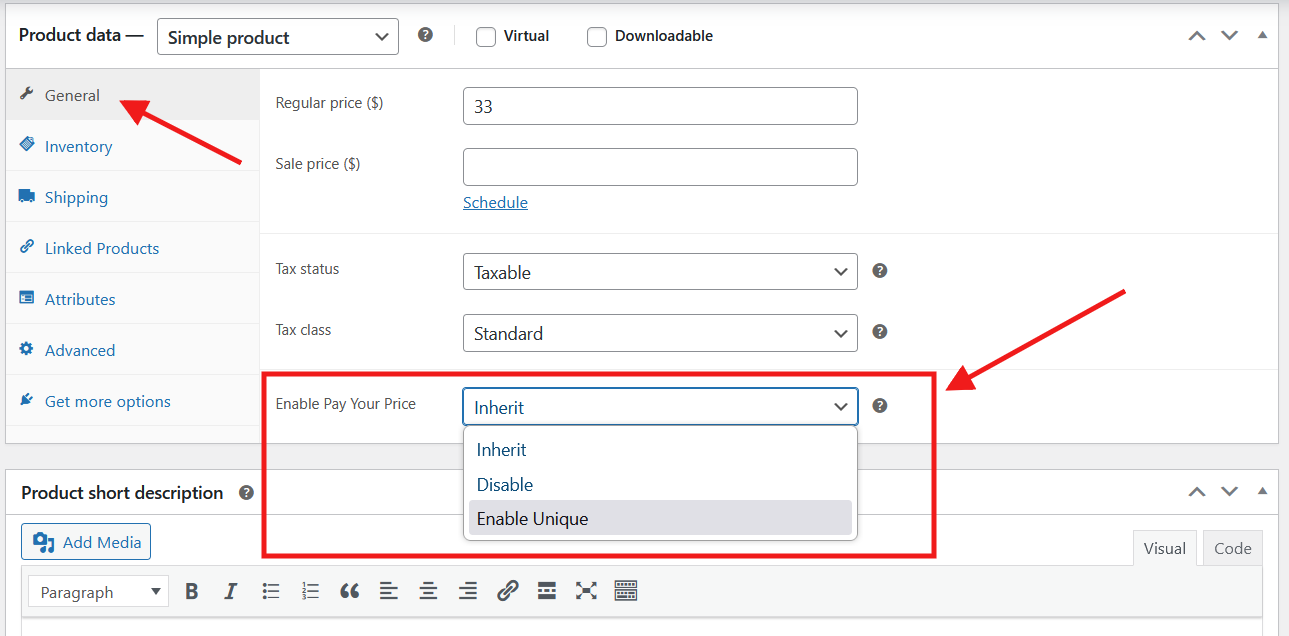
- Inherit: Enable the “Pay Your Price” feature and automatically apply the configuration settings defined by this product’s assigned “Product Category”.
- Disable: The product will work as a regular product without the “Pay Your Price” feature.
- Enable Unique: Enable the “Pay Your Price” feature and define custom configuration settings specifically for this product.
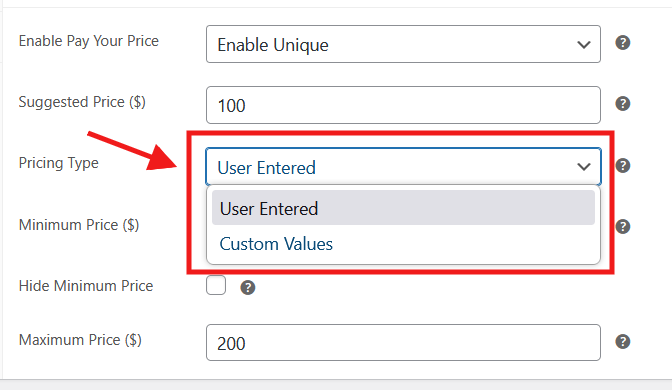
Select the desired “Pricing Type” either “User Entered” or “Custom Values”
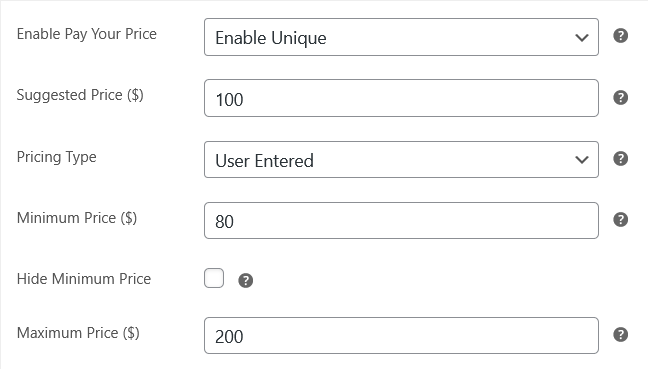
- Suggested Price: The suggested price to show to the customer. Leave empty to not show.
- Pricing Type: Select the desired “Pricing Type” either “User Entered” or “Custom Values”.
- User Entered: Allow customers to enter their desired price directly into the input field.
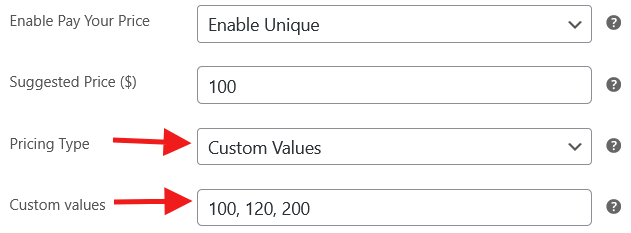
- Custom Values: Enter your custom price options (e.g., 10, 100, 200), which will be presented to customers in a dropdown menu for selection.
- Minimum Price: The minimum price of the product.
- Hide Minimum Price: If checked, the minimum price will not be shown to the customer.
- Maximum Price: The maximum price of the product.
If the “Pricing Type” is “Custom Values”, then another field will be shown. Enter the values separated by a comma (,). These values will be shown to the customer as a drop-down on the frontend.
Variable product
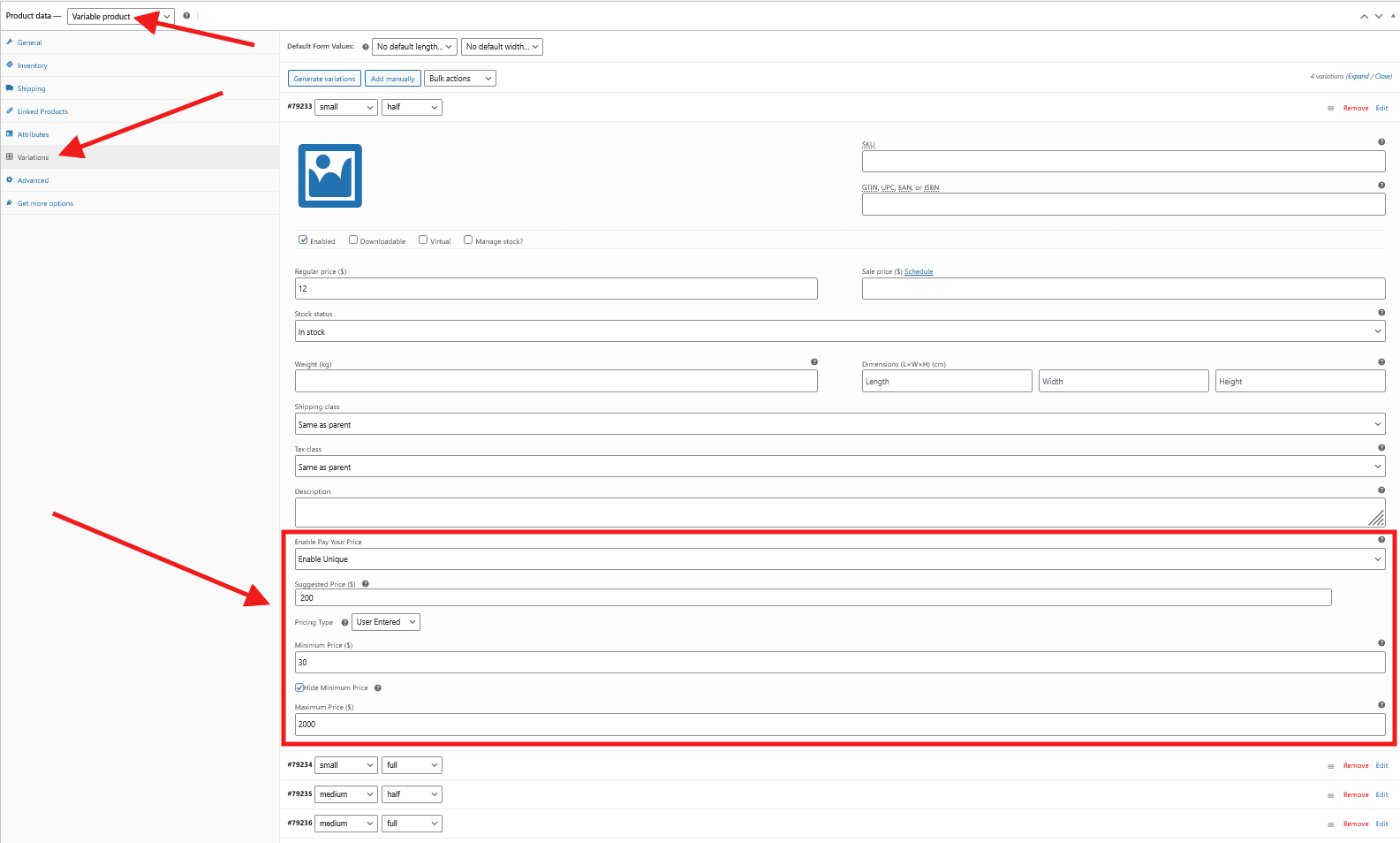
The same settings will be available for each product variation. You can set the “Pay Your Price” feature to “Inherit”, “Disable”, or “Enable Unique” for each variation separately.
Product category-based configuration
Enable “Pay Your Price” for a product category by selecting the “Enable” option from the drop-down. All products with the “Pay Your Price” setting set to “Inherit” will automatically use the configuration defined at the category level.
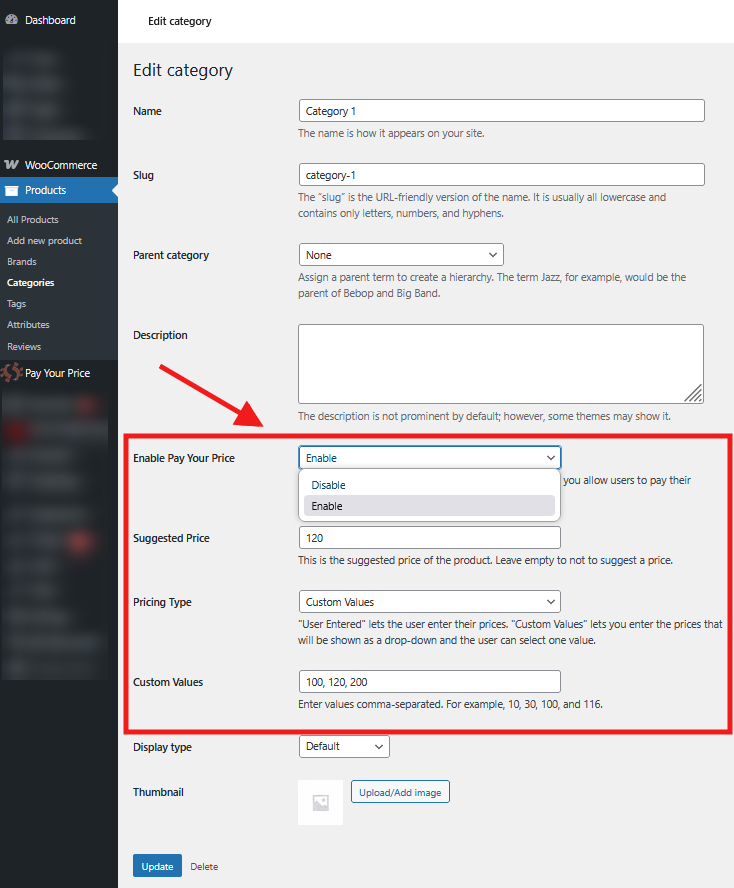
All of the other settings are already explained inside the “Product-based configuration” section above.
Plugin compatibility and supported product types
WooCommerce Name Your Price plugin works with a variety of product types, including
- Simple Product
- Variable Product
- Paywall Product
However, we are open to adding support for more product types and popular plugins on customer demand. Please contact our support team at support@progos.org to add compatibility or request another feature or any customization.
Read our blog posts about this plugin: Name Your Price
Changelog
Version 2.0.1 * Added - Coding and security improvements.
Version 2.0.0 * Added - Hide minimum price option. * Added - Per-product category configuration to enable name your price for multiple products from one location. * Added - Suggested price option. * Added - Pricing types to either let the customer enter a price or show a drop-down with pre-entered values. * Added - Minimum and suggested price text configuration inside the settings page.
Version 1.0.3 * Fixed - Add to cart JS issue when Ajax add to cart is enabled.
Version 1.0.2 * Fixed - Incorrect prices on cart page inside the products table. * Improvement - Code optimization.
Version 1.0.1 * Fixed - Redirect to cart page. * Fixed - Custom pay field issues for variable products. * Fixed - Minor tweaks, optimized code and security.
Version 1.0.0 * Initial Release.
$39 |
Download |
0 average based on 1 ratings.

| Last Update | 2025-09-30 |
| Created | 2018-06-08 |
| Sales | 82 |
| Discussion | Comments |
| Compatible Browsers | IE10 IE11 Firefox Safari Opera Chrome Edge |
| Software Version | WordPress 6.8.x WordPress 6.7.x WordPress 6.6.x WordPress 6.5.x WordPress 6.4.x WordPress 6.3.x WordPress 6.2.x WordPress 6.1.x WordPress 6.0.x WordPress 5.9.x WordPress 5.8.x WordPress 5.7.x WordPress 5.6.x WordPress 5.5.x WordPress 5.4.x WordPress 5.3.x WordPress 5.2.x WordPress 5.1.x WordPress 5.0.x WordPress 4.9.x |
| Compatible With | WooCommerce 9.x.x WooCommerce 8.x.x WooCommerce 7.x.x WooCommerce 6.x.x WooCommerce 5.x.x WPML |
| Gutenberg Optimized | No |
| High Resolution | |
| Files Included | JavaScript JS HTML CSS PHP |
| Video Preview Resolution |


