WooCommerce Biometric Login - Passkey / Fingerprint / Face ID Login | Passwordless WebAuthn


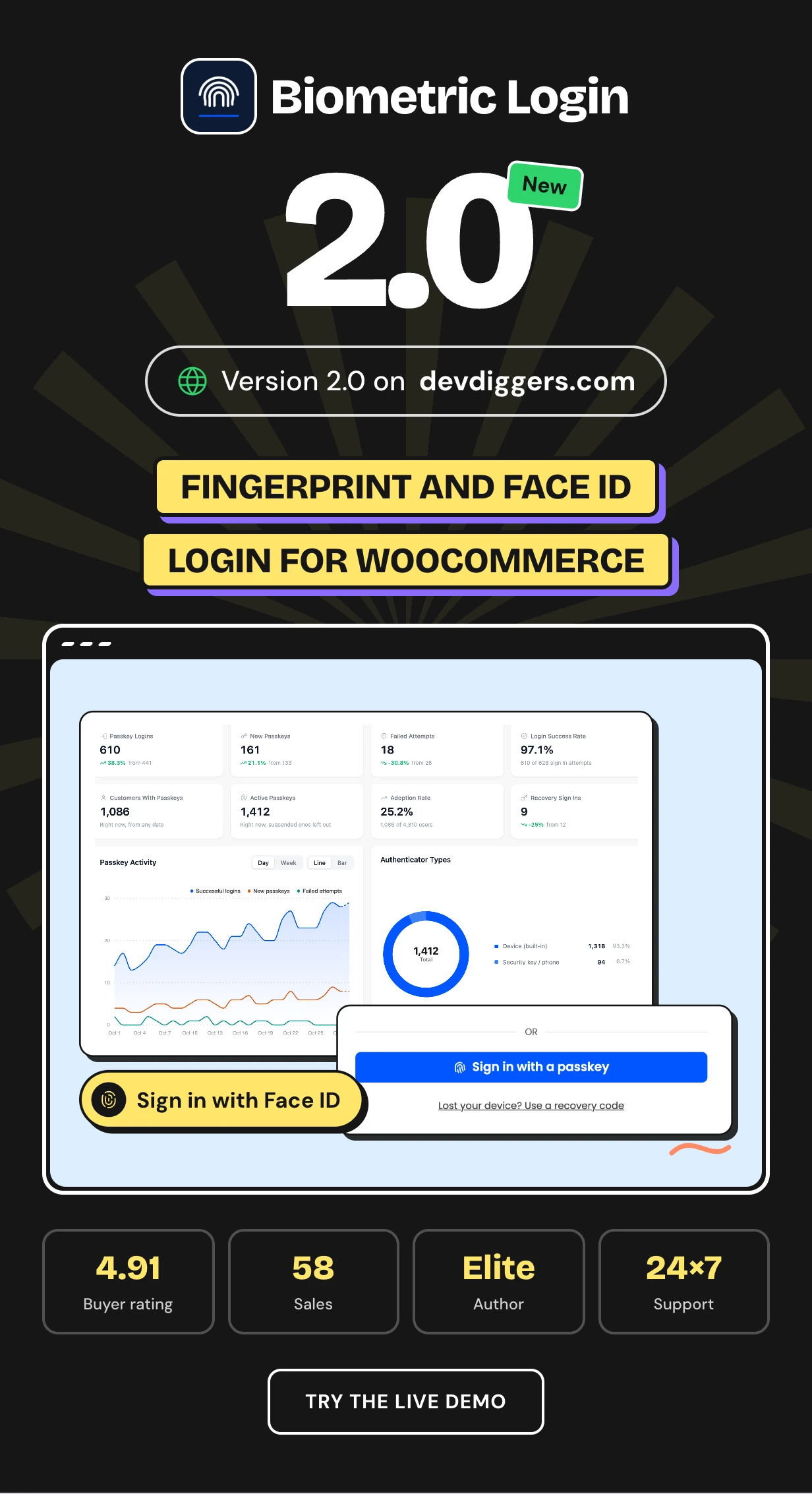
Biometric Login adds WooCommerce biometric login to your store. Shoppers sign in with Face ID, a fingerprint, Touch ID and Windows Hello, with no password to type or reset. It works on My Account, the checkout login and wp-admin.
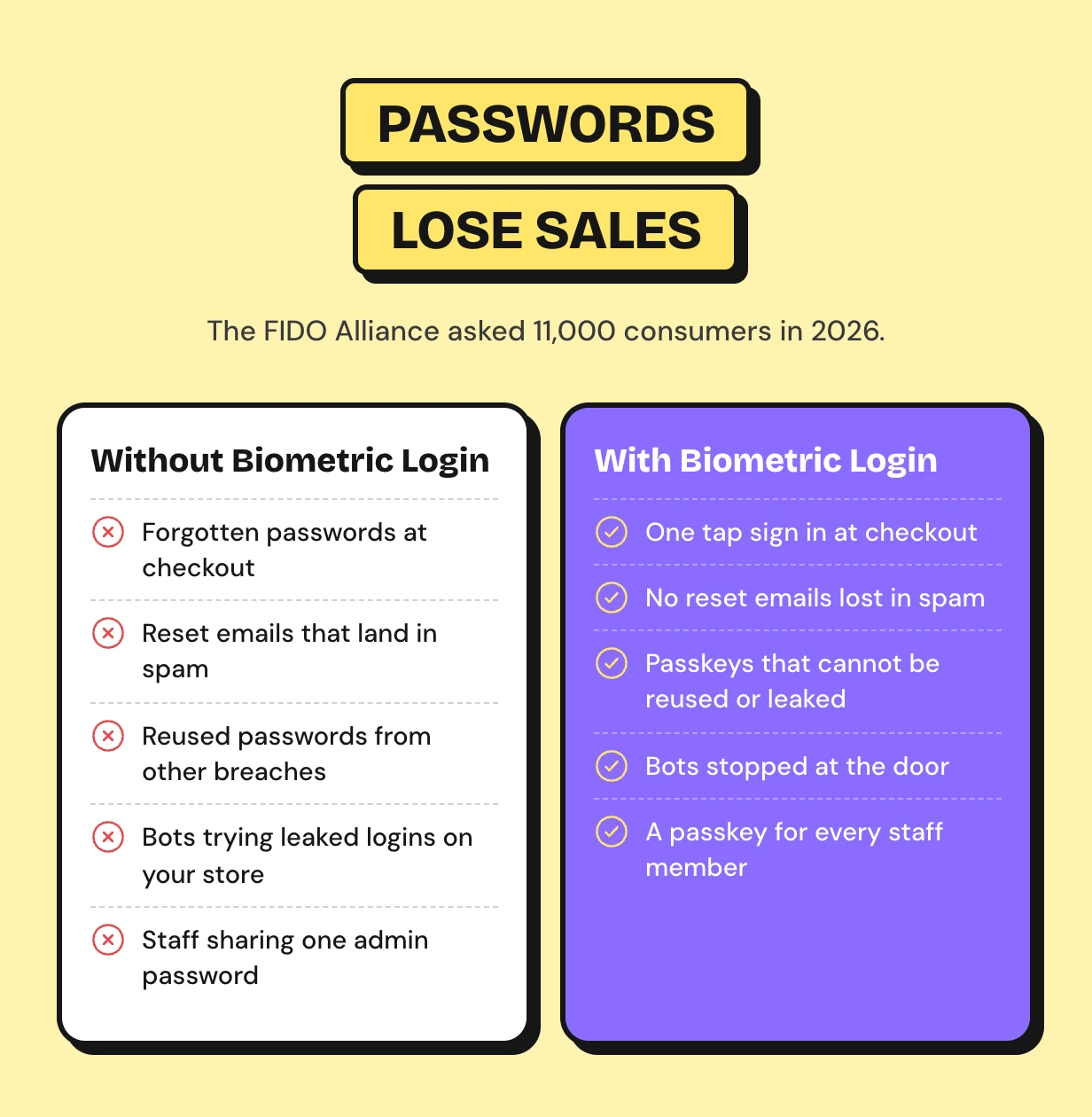
WooCommerce has no passkey sign in of its own. Customers forget passwords at checkout, reset emails land in spam and bots try leaked logins. A passkey fixes all three, because there is no password to steal.
It works as passkey login for customers, passwordless login for staff and a WordPress passkey plugin built on WebAuthn. The scan never leaves the device, and your store keeps only a public key.
Every plan and the latest features: Biometric Login plugin page
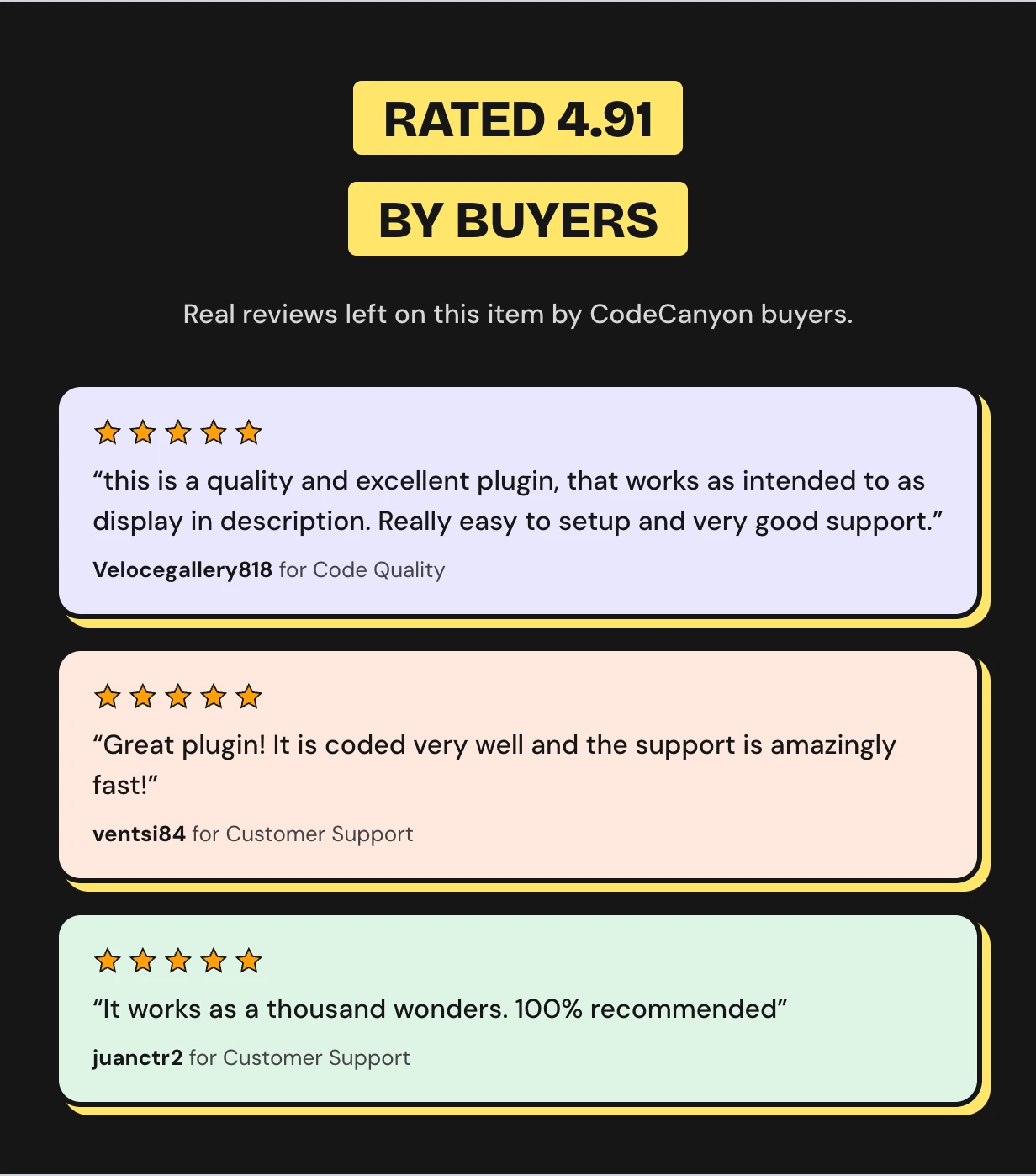
Rated 4.91 out of 5 by CodeCanyon buyers




Passwords lose sales on a WooCommerce store
A customer comes back to buy again and cannot remember the password. The reset email lands in spam, and the sale is gone.
Stolen passwords are the other half of the problem. Bots try passwords leaked from other sites on your login form all day.
How biometric login works
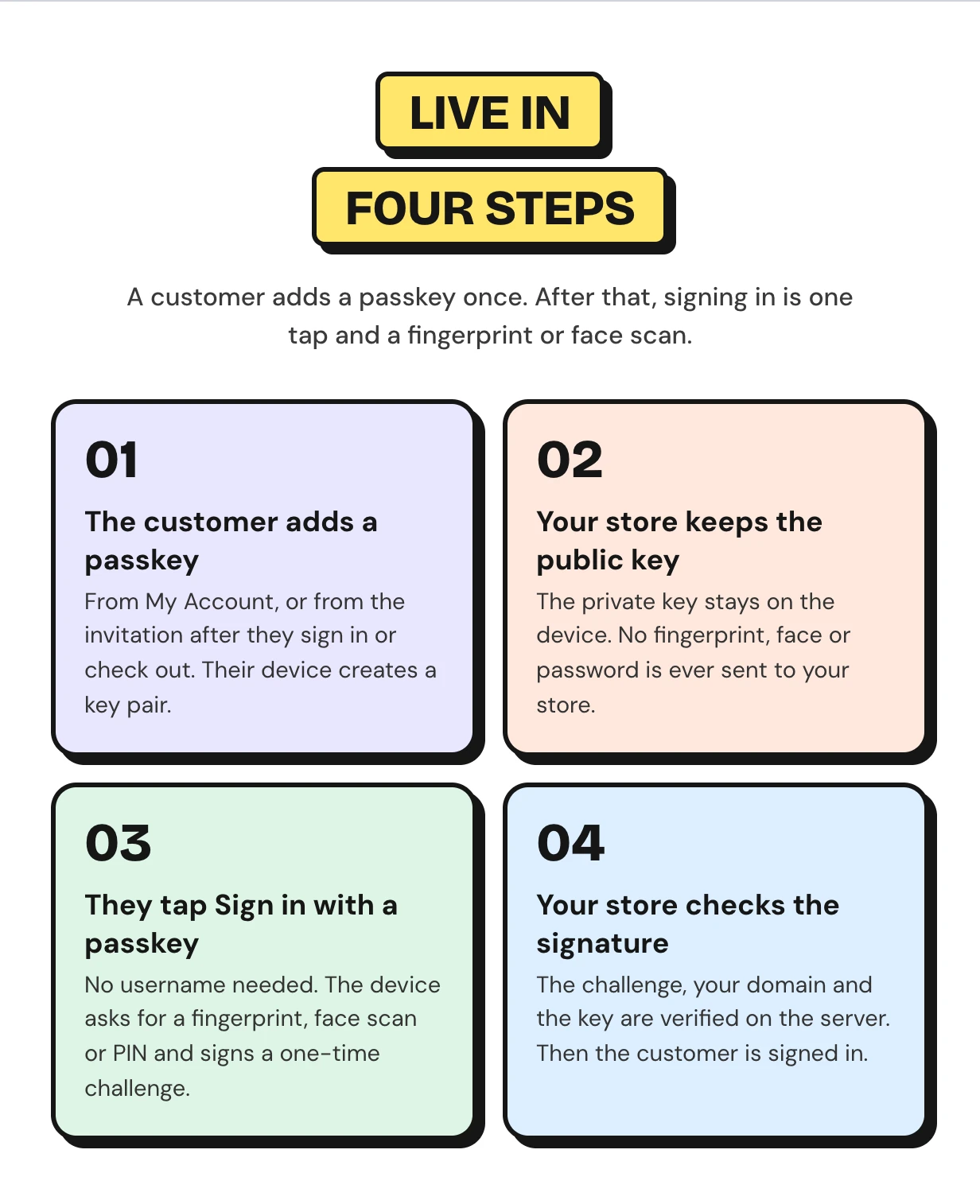
The customer adds a passkey once and their device keeps the private key. The setup wizard turns passkey sign in on for your store in a few steps.
Biometric login features
Every feature below ships in this one download. It covers the passkey button on every login form, the backup ways in and the tools to manage passkeys for your users.
One-tap passkey login on My Account
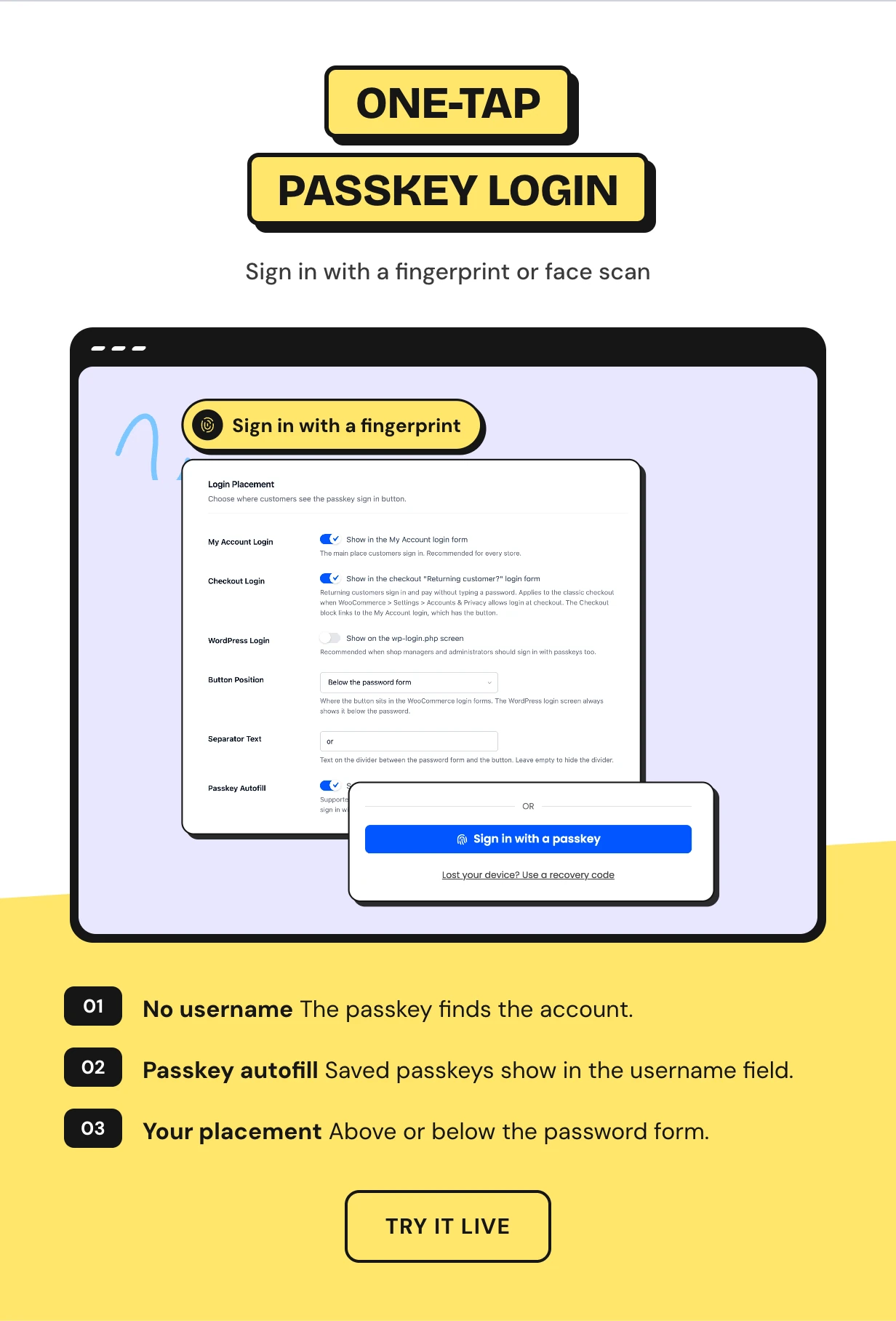
A Sign in with a passkey button sits on the My Account login form. Customers tap it, confirm with a fingerprint or face scan and they are in.
They do not even type a username, because the passkey finds the account. On supported browsers, saved passkeys also appear in the username field.
Passkey login for checkout without a password
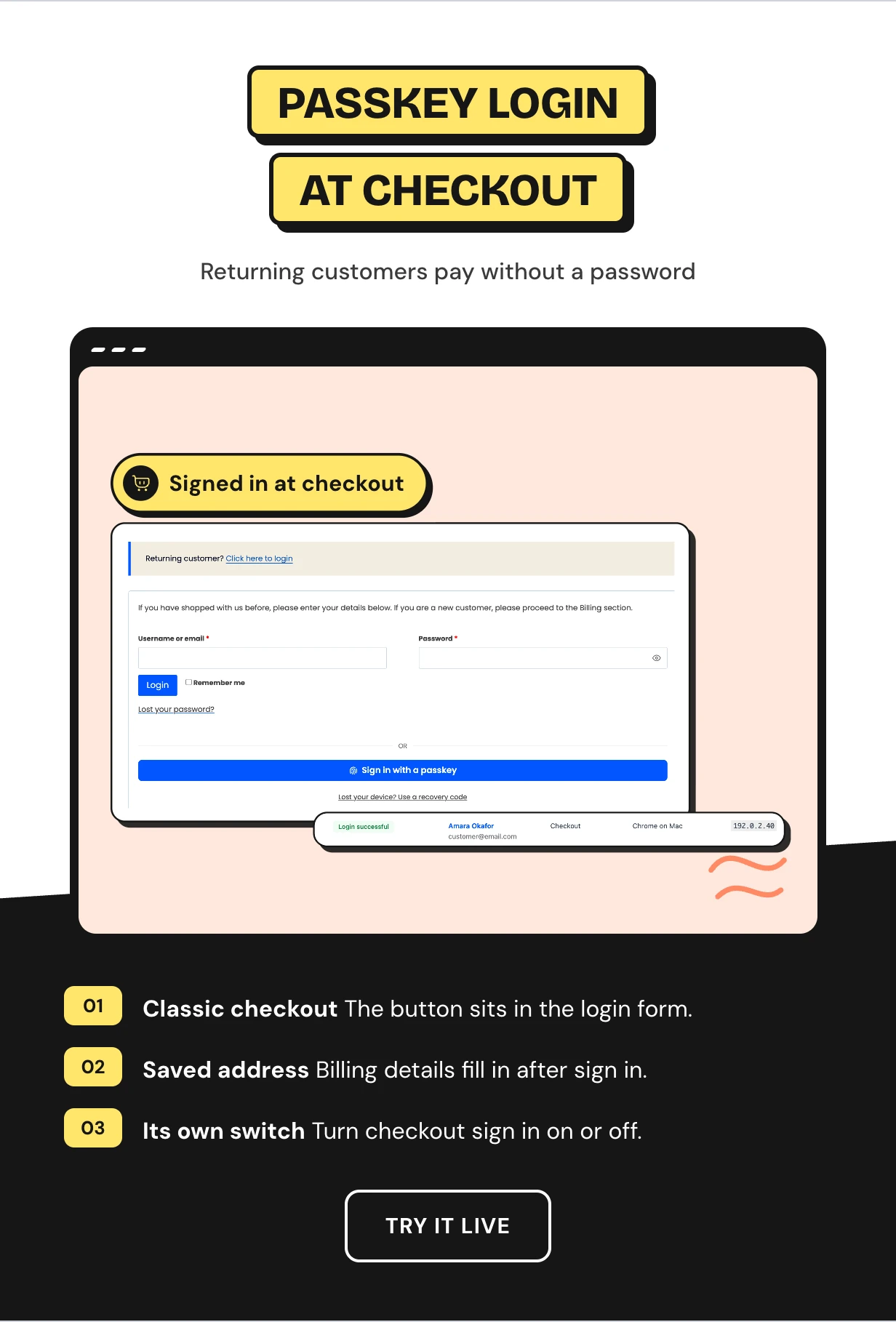
Returning customers open the returning customer link at checkout and sign in with their passkey. Their saved address fills in and they can pay right away.
It works on the classic checkout login form. The Checkout block links to the My Account login, which has the button.
WordPress passkey login for admins and shop managers
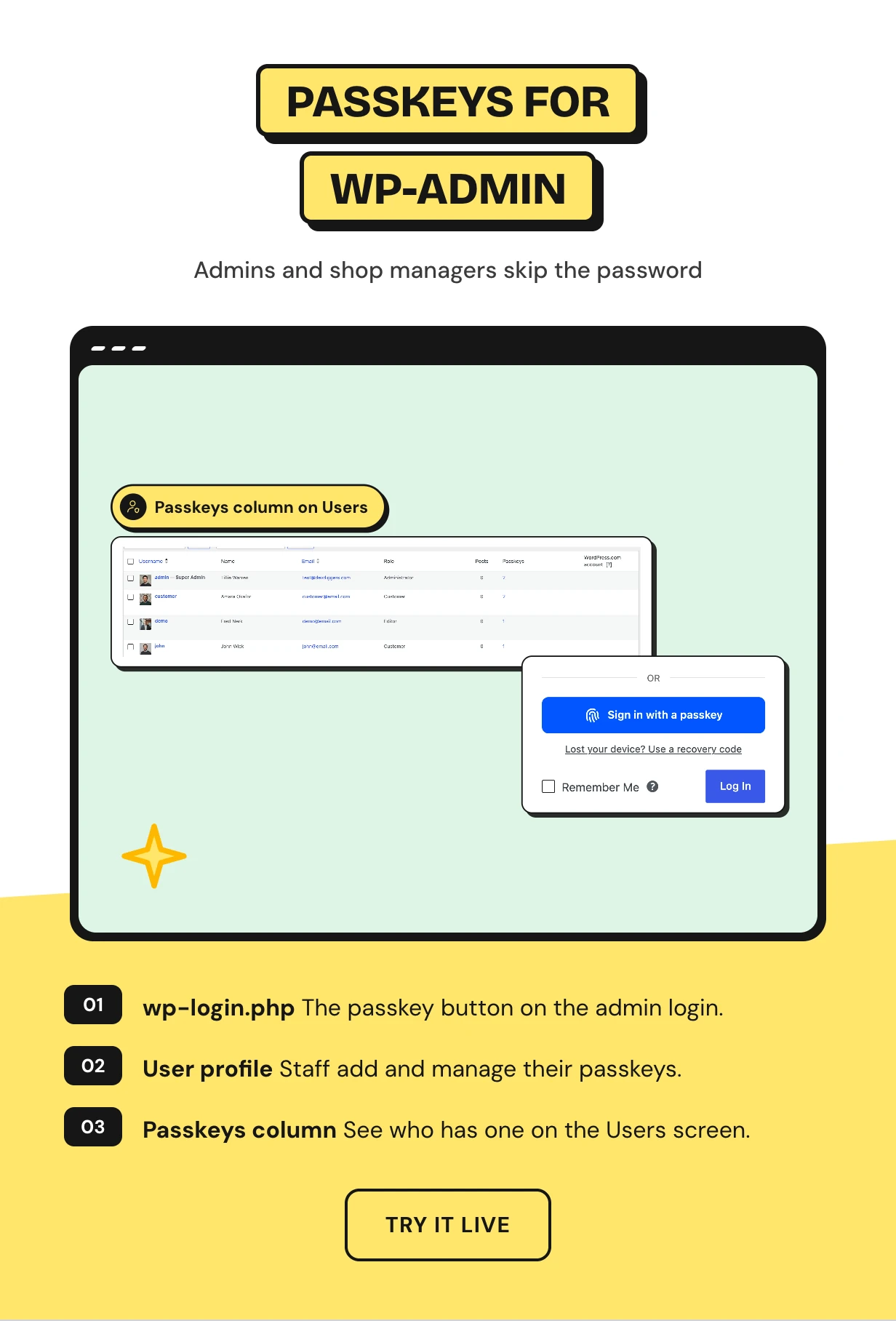
Turn on the button for the wp-login.php screen and your team signs in to wp-admin with a passkey too. Staff add theirs from their own user profile.
Admins can see, suspend or remove anyone else’s passkeys from the user profile. The Users screen gets a Passkeys column.
A passkey manager in My Account
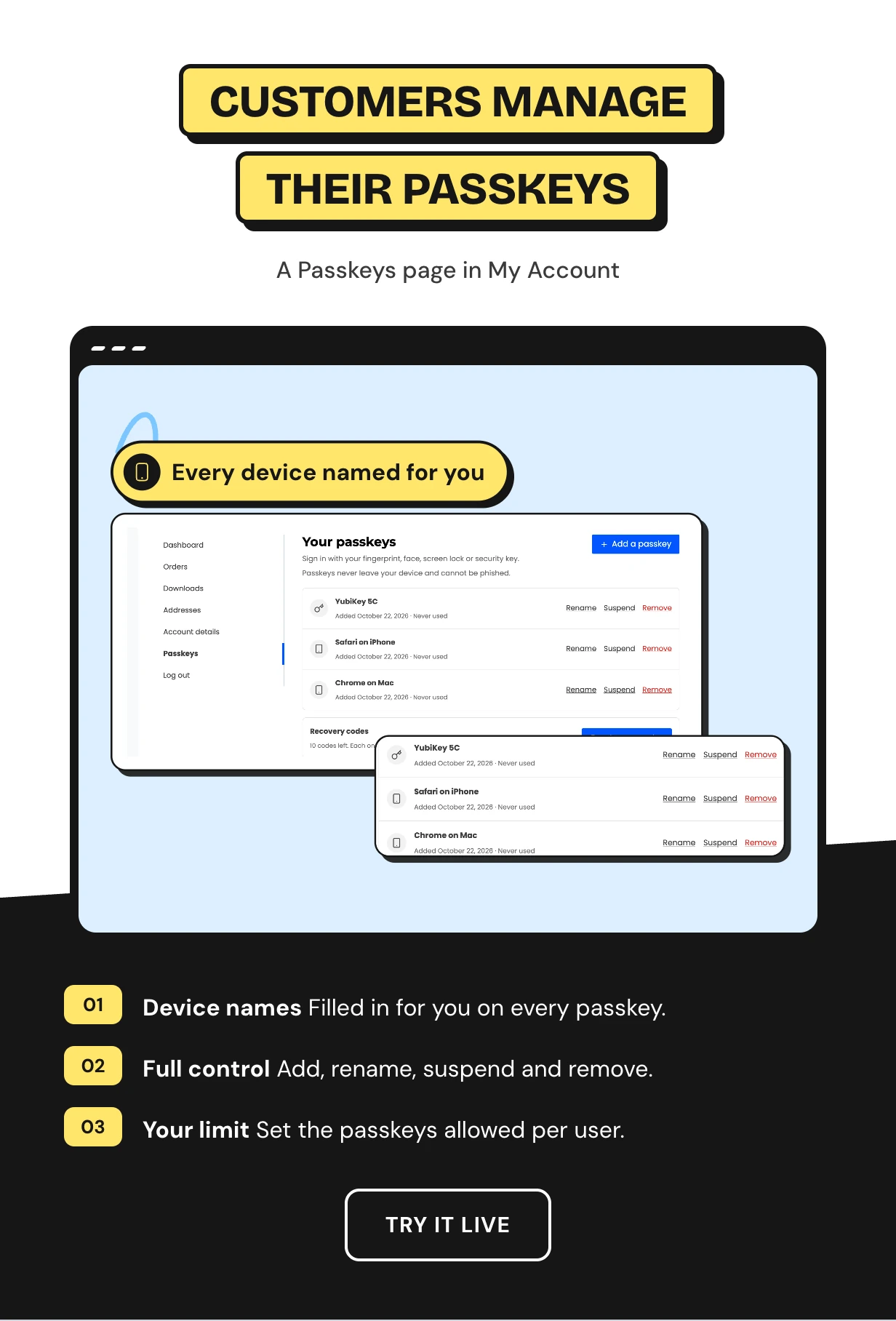
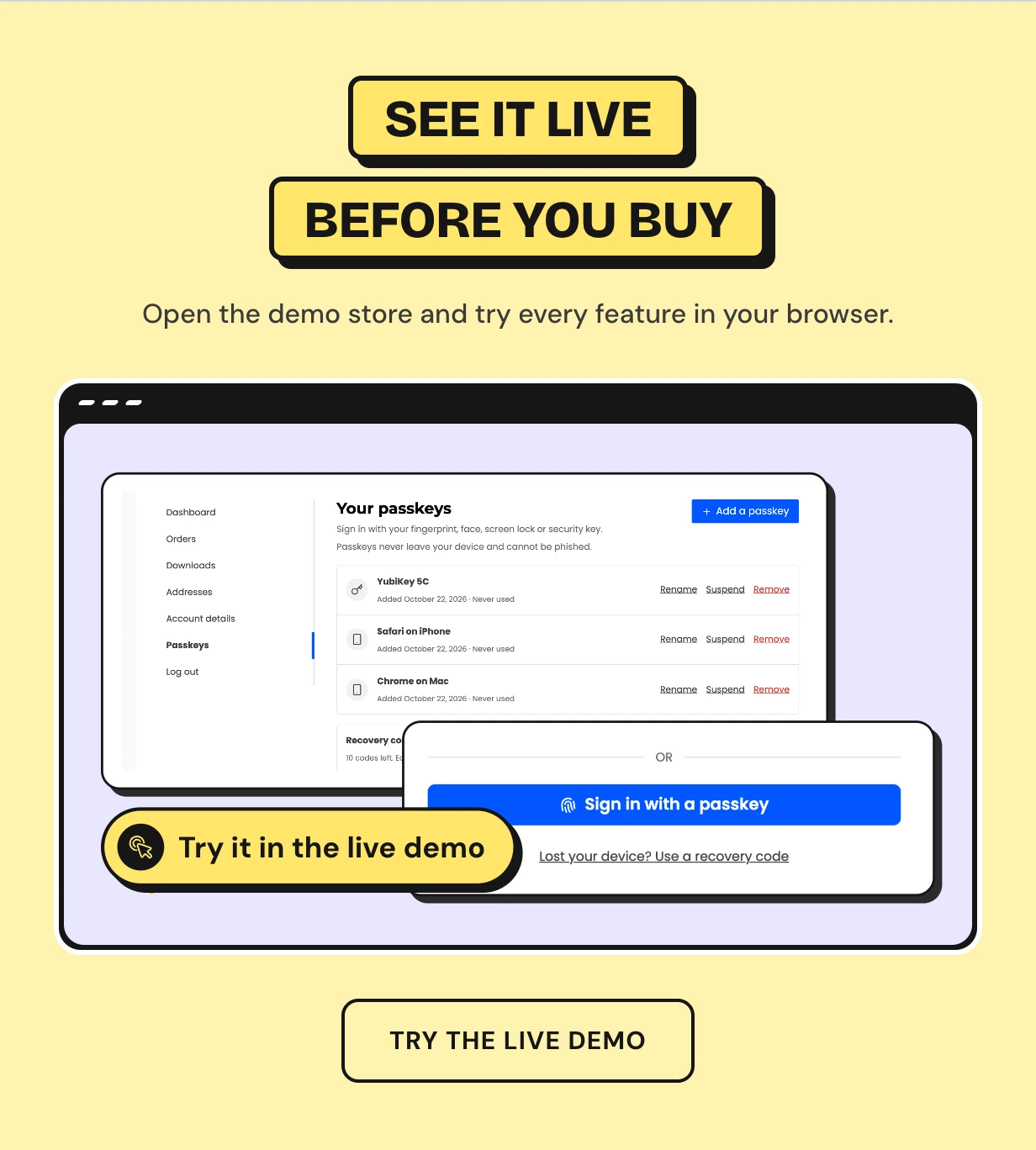
A Passkeys page in My Account lists every device a customer added, such as Safari on iPhone. It shows when each was added and last used.
Customers add a new passkey, rename one, suspend it or remove it. You set how many passkeys each person can keep.
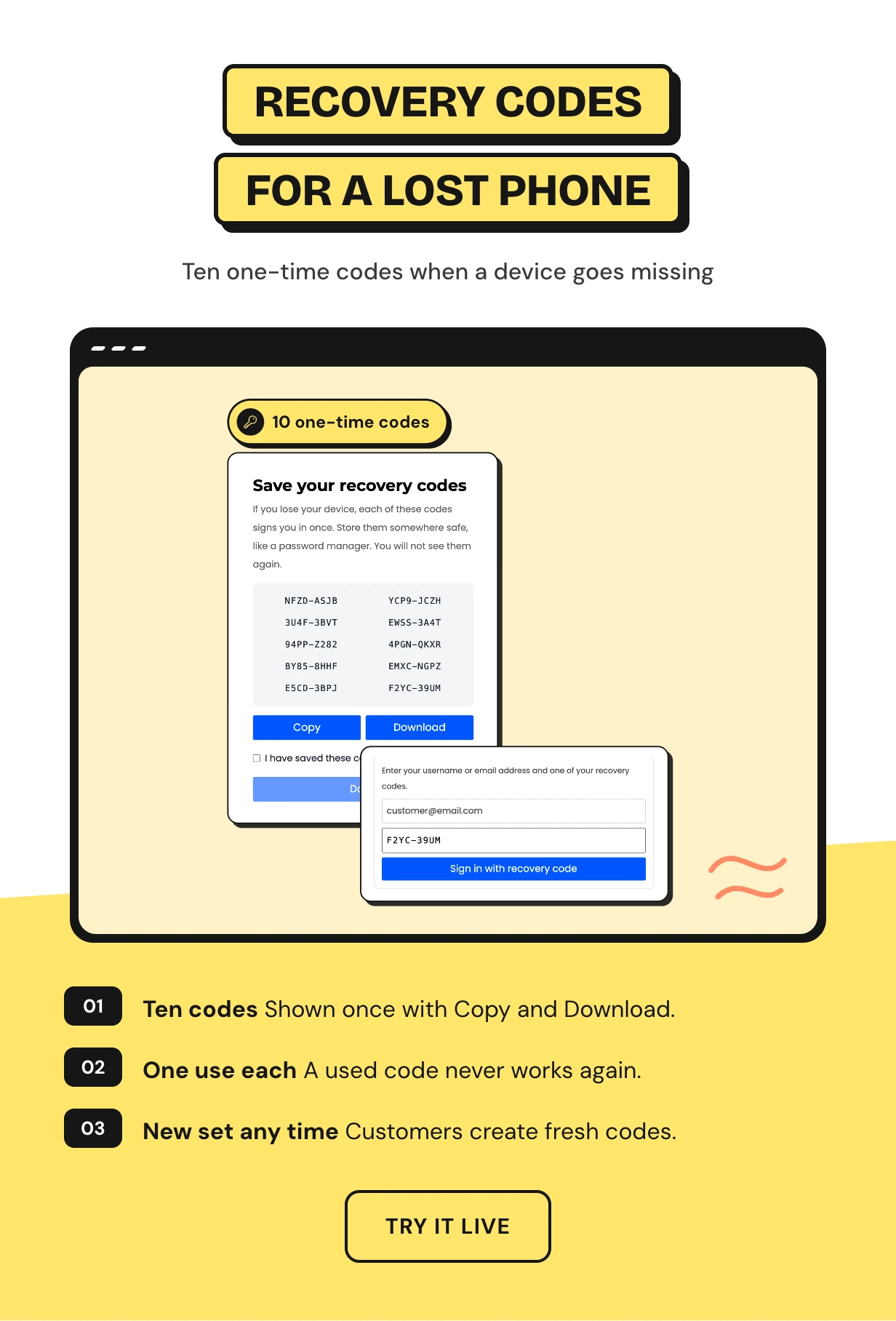
Recovery codes for a lost phone
After the first passkey, customers get ten one-time recovery codes to copy or download. Only hashes of the codes are stored on your store.
If a device is lost, the customer clicks Use a recovery code on the login form and gets back in. No reset email is needed.
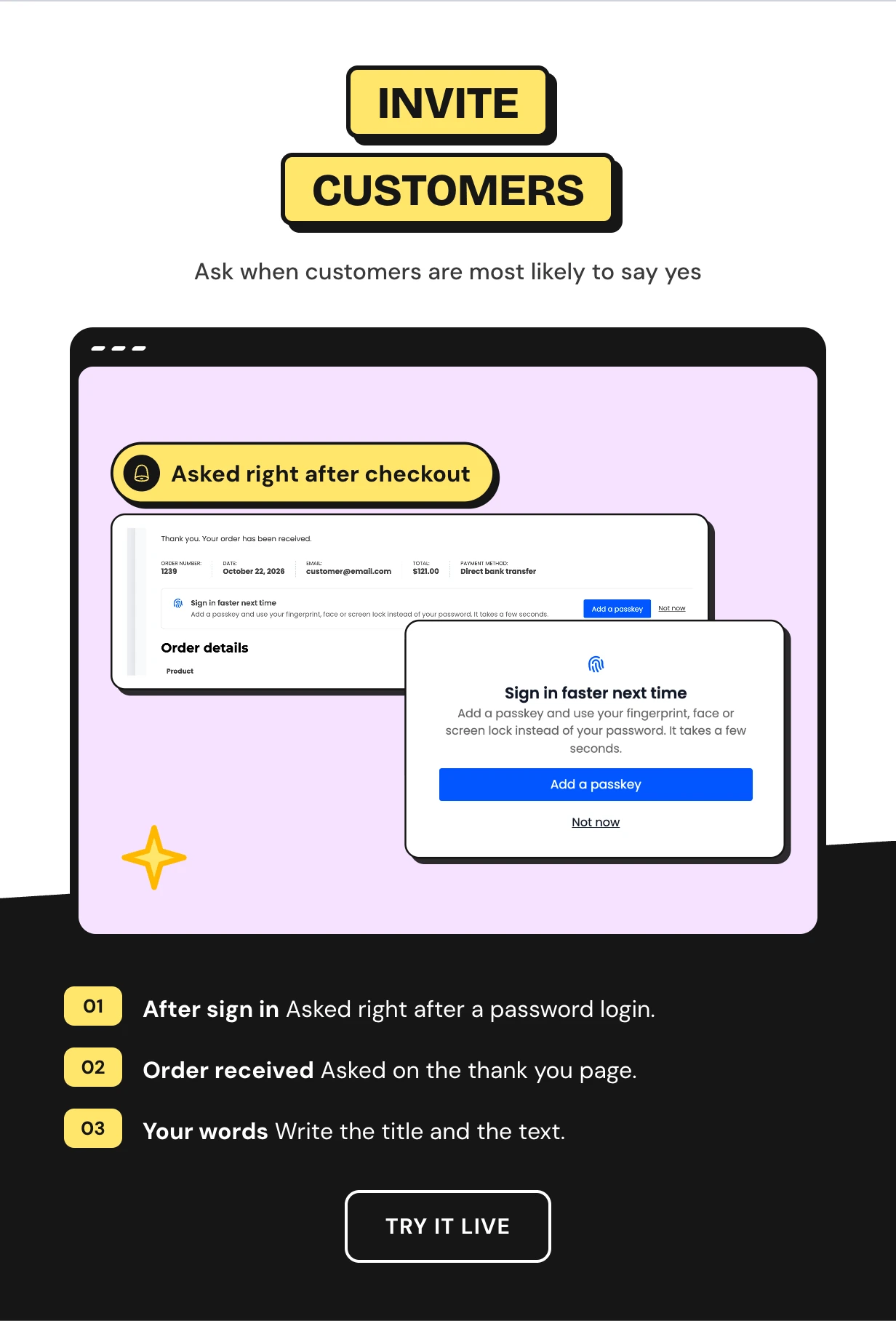
Passkey invitations after sign in and checkout
Passkeys only help customers who add one. A short invitation appears right after a password sign in, after registration and on the order received page.
A card on the My Account dashboard covers everyone else. Not now hides it for 30 days, and you write the title and text.
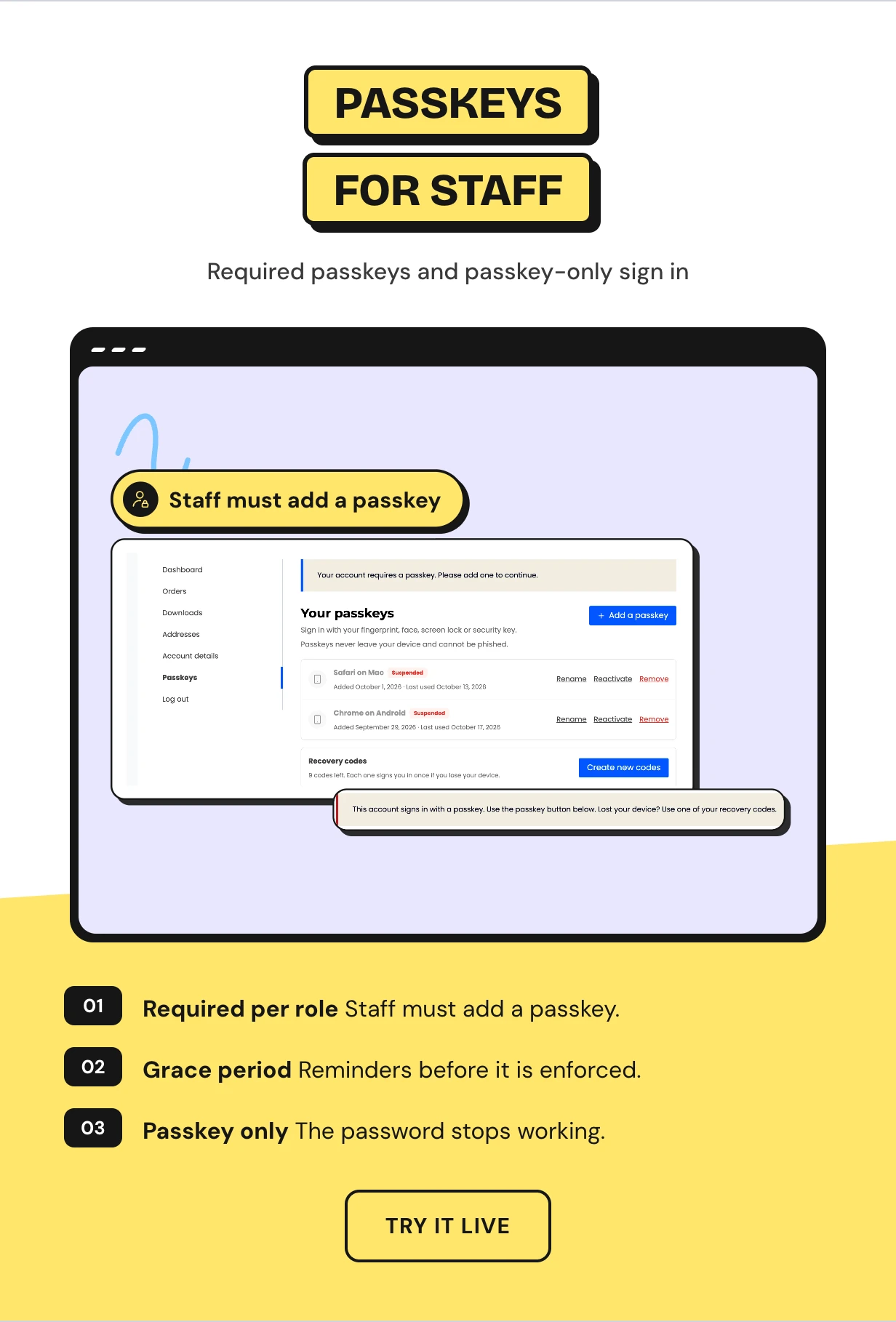
Require passkeys and turn on passwordless login for staff
Pick the roles that must use a passkey, such as administrators and shop managers. They get reminders during a grace period, seven days by default.
With passkey-only sign in, a password stops working once the user has a passkey. A stolen or reused password is then useless on that account.
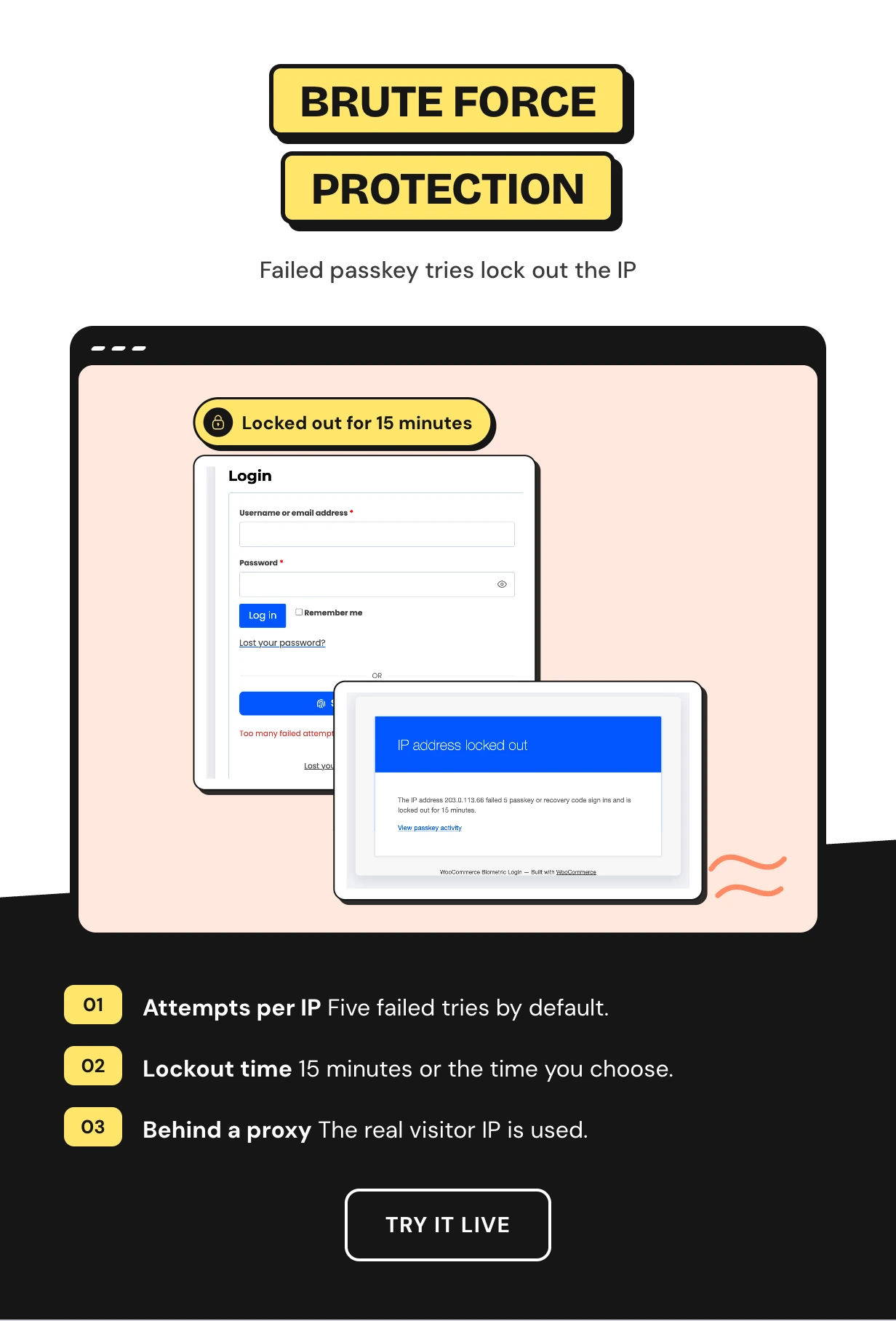
Brute force protection for passkey sign ins
An IP address that fails five passkey or recovery code attempts is locked out for 15 minutes. You set both numbers.
Behind Cloudflare or a load balancer, the plugin can read the real visitor IP. You get an email alert for every lockout.
Security emails and admin alerts
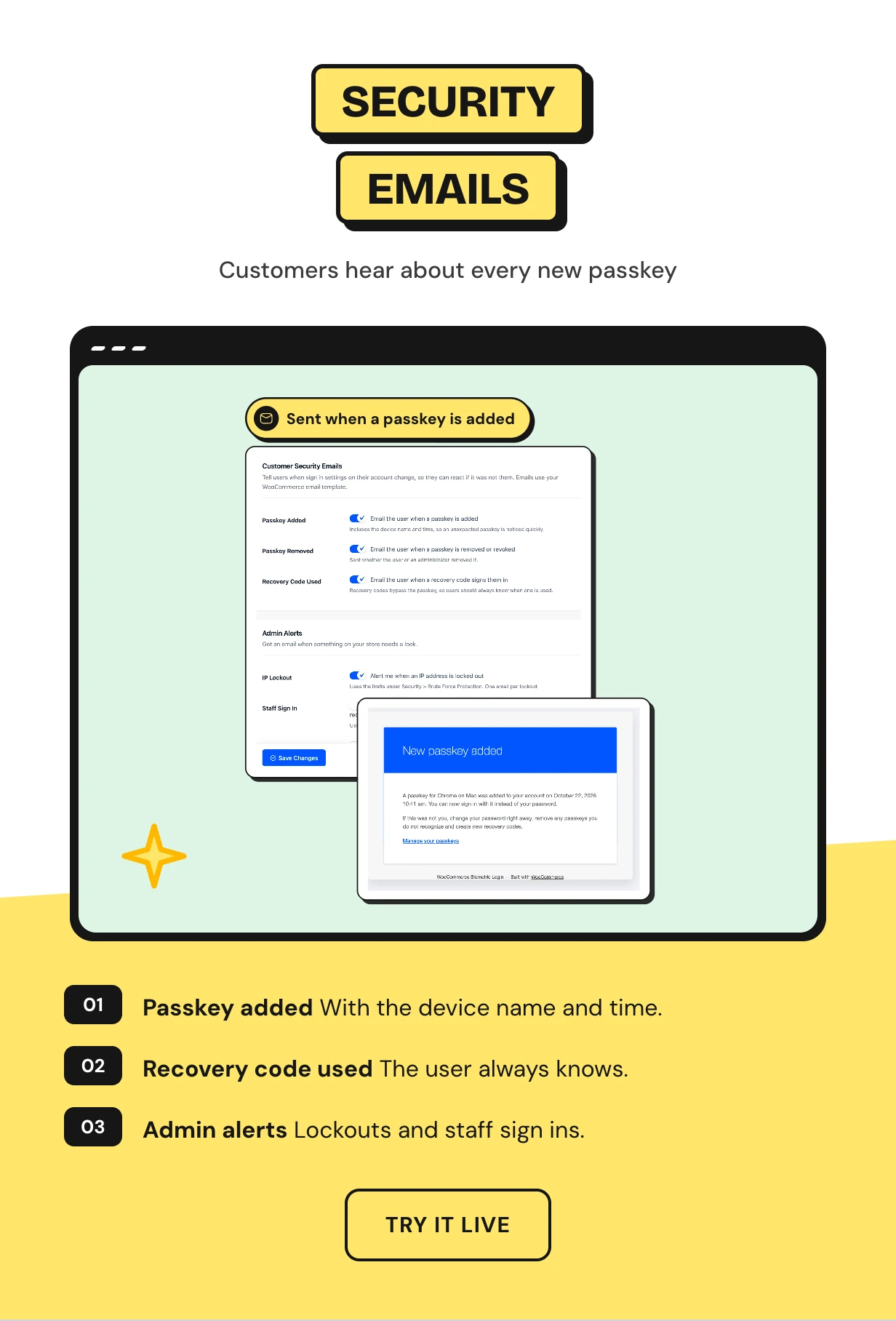
Customers get an email when a passkey is added or removed, and when a recovery code signs them in. If it was not them, they can act at once.
You get an alert when an IP address is locked out, and optionally when staff sign in with a passkey. Emails use your WooCommerce template.
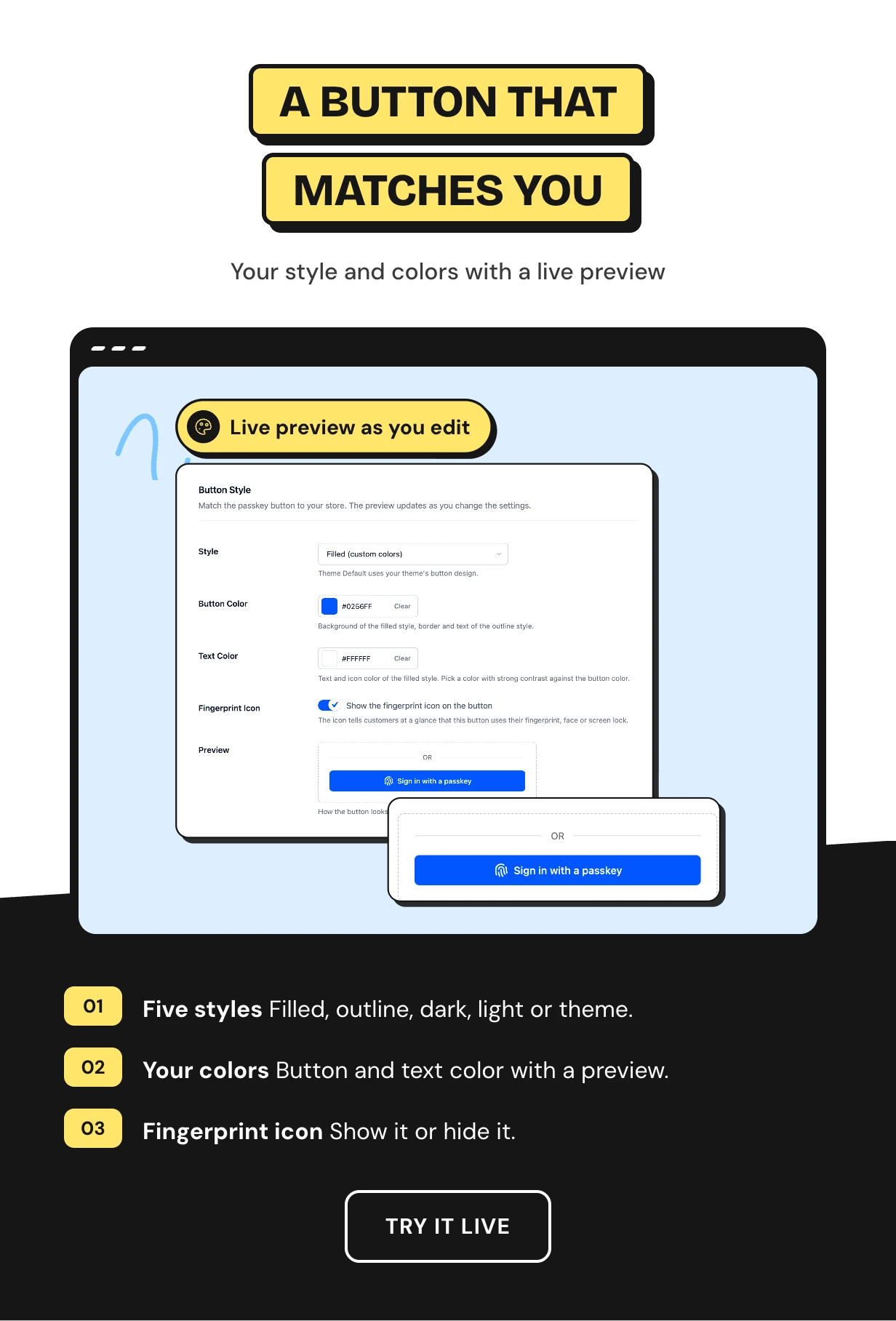
A fingerprint login button that matches your store
Pick filled, outline, dark, light or your theme’s own button style. Set the colors, the text and the fingerprint icon, with a live preview.
Place the button above or below the password form and change the divider text. Every customer-facing text can be rewritten.
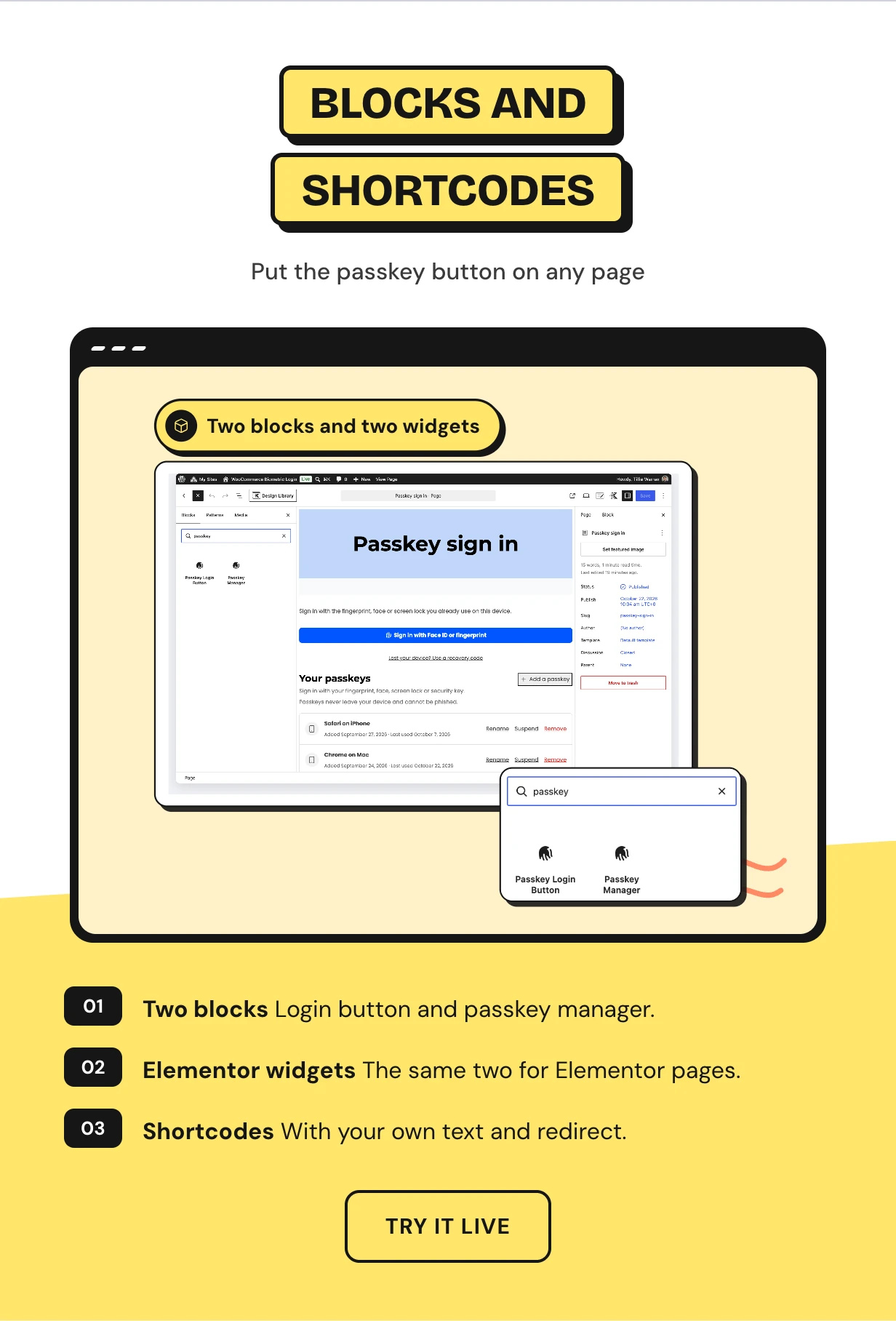
Passkey login blocks and Elementor widgets
Put the passkey login button or the passkey manager on any page. Use the two blocks, the Elementor widgets or the shortcodes.
The login button takes its own text and a redirect after sign in. It hides for customers who are already signed in.
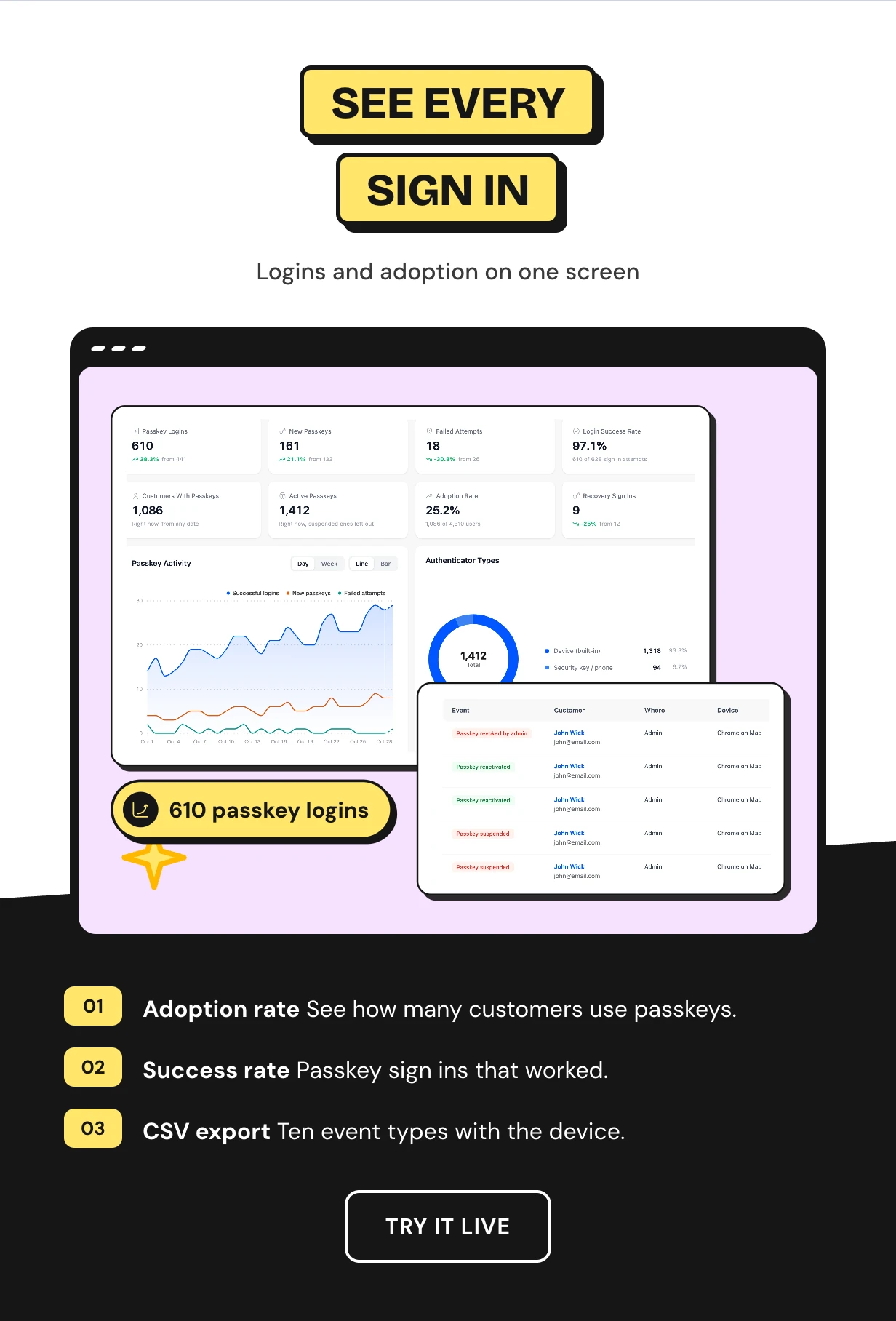
A biometric login dashboard and activity log
Eight cards show passkey logins, new passkeys, failed attempts, success rate, customers with passkeys and adoption rate. Each compares with the period before.
The Activity log records ten event types with IP address and device. Filter by event and date and export the list to CSV.
Full feature list
Sign in
- Passkey button on the My Account login
- Passkey button on the classic checkout login
- Passkey button on wp-login.php
- Passkey autofill in the username field
- Keeps Remember me and redirects
- Face ID, Touch ID, Windows Hello, Android fingerprint and security keys
Passkeys and recovery
- Passkeys page in My Account
- Add, rename, suspend and remove passkeys
- Passkeys per user limit
- Ten one-time recovery codes stored as hashes
- New recovery codes any time
Adoption
- Invitation after password sign in and registration
- Invitation on the order received page
- My Account dashboard card
- Your own invitation title and text
Security
- Required passkeys per role with a grace period
- Passkey-only sign in per role
- Allowed roles
- Brute force lockout per IP
- Real visitor IP behind a proxy
- Security emails and admin alerts
Design and placement
- Five button styles with a live preview
- Your colors, text and fingerprint icon
- Above or below the password form
- Passkey Login Button and Passkey Manager blocks
- Elementor widgets and shortcodes
Admin and reports
- Dashboard with eight cards and a daily chart
- Environment check for HTTPS and PHP extensions
- Passkeys screen with bulk suspend, reactivate and revoke
- Activity log with ten event types and CSV export
- Passkeys column and profile section for users
- WordPress privacy export and erase
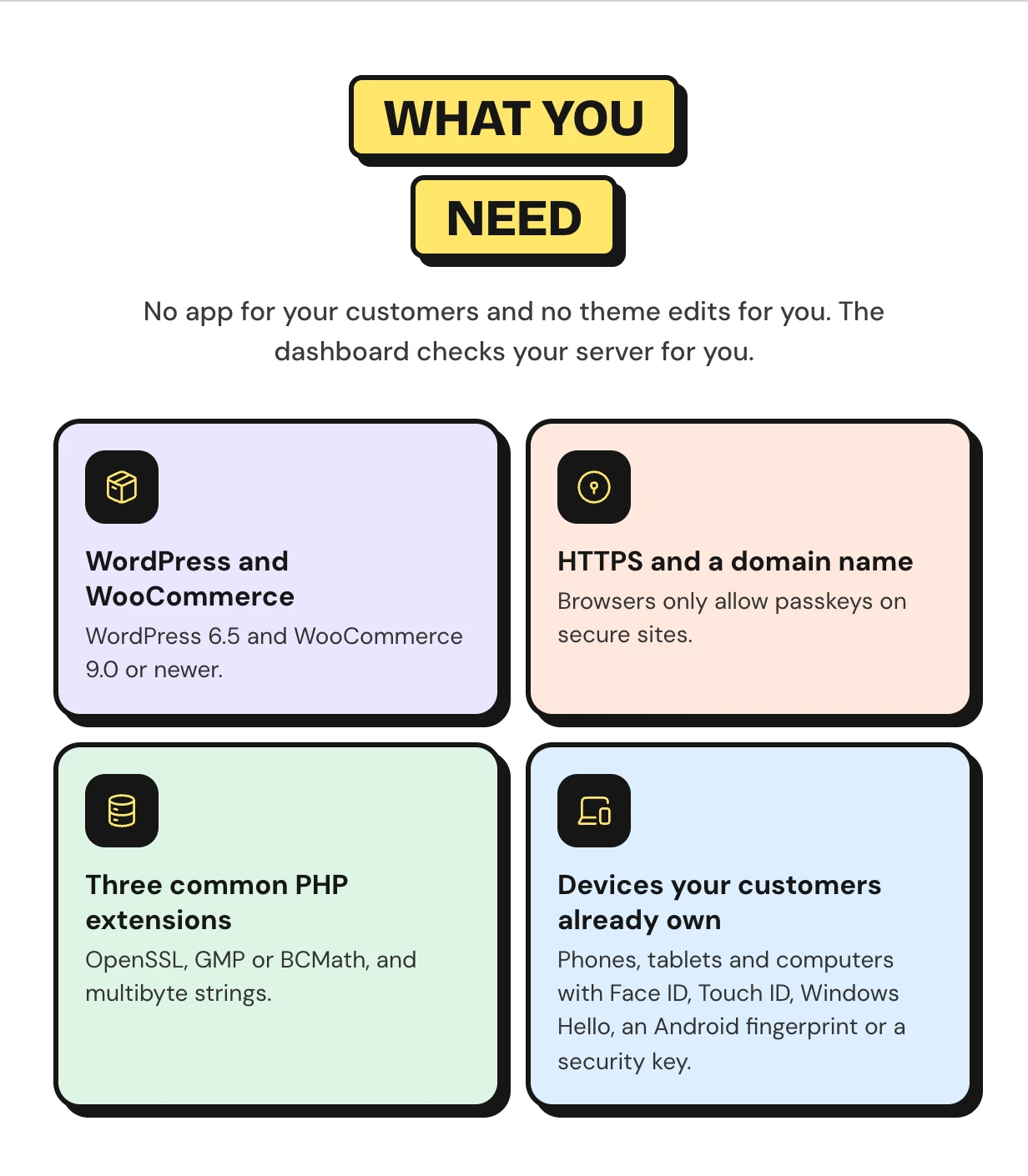
What you need for passkey sign in
Your store needs HTTPS and a domain name. Customers use the phone or computer they already own.
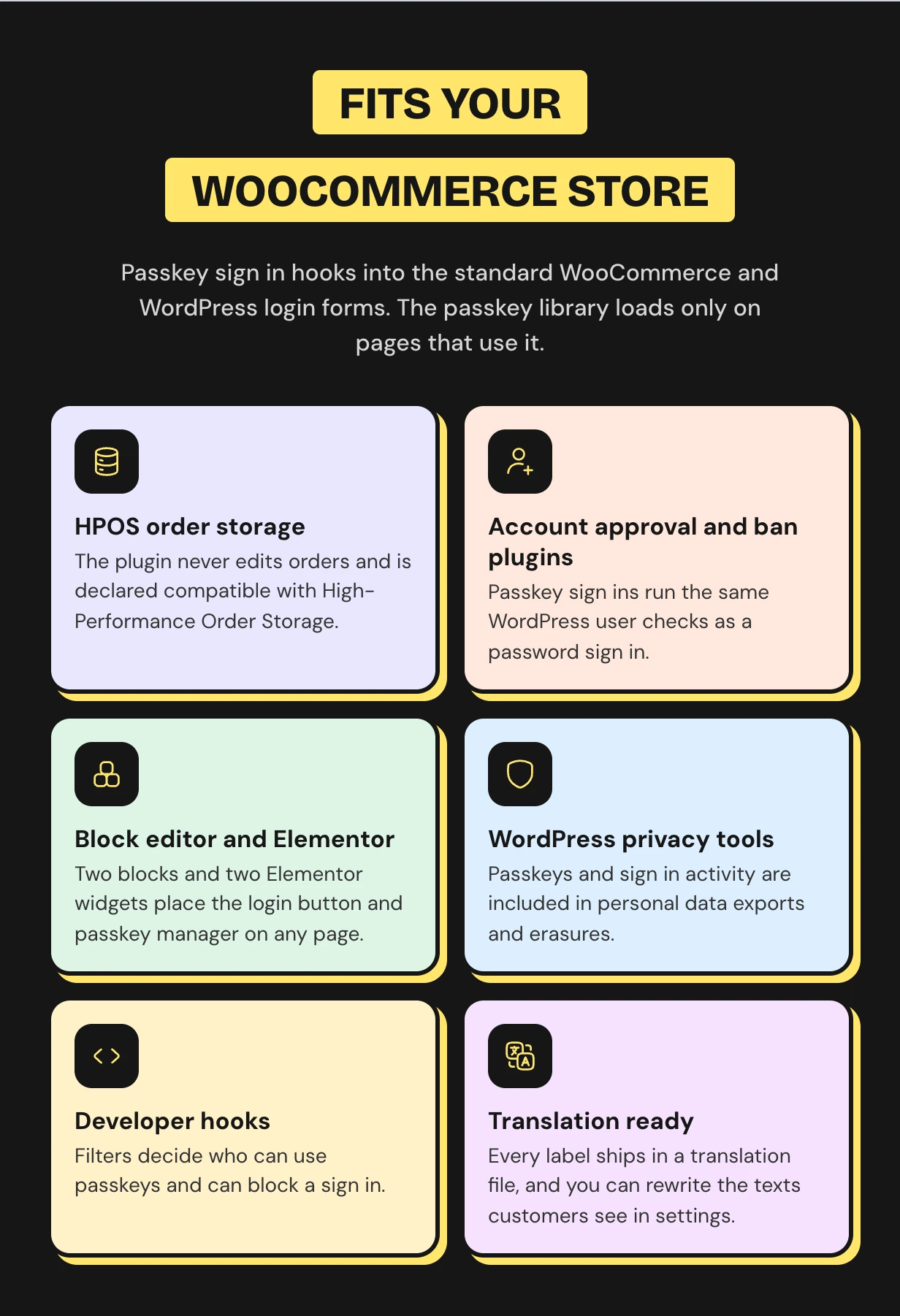
Works with the WooCommerce store you already run
The button shows on the My Account login and the classic checkout login. Staff get WordPress biometric login on wp-login.php. Blocks and shortcodes add WordPress fingerprint login to any other page.
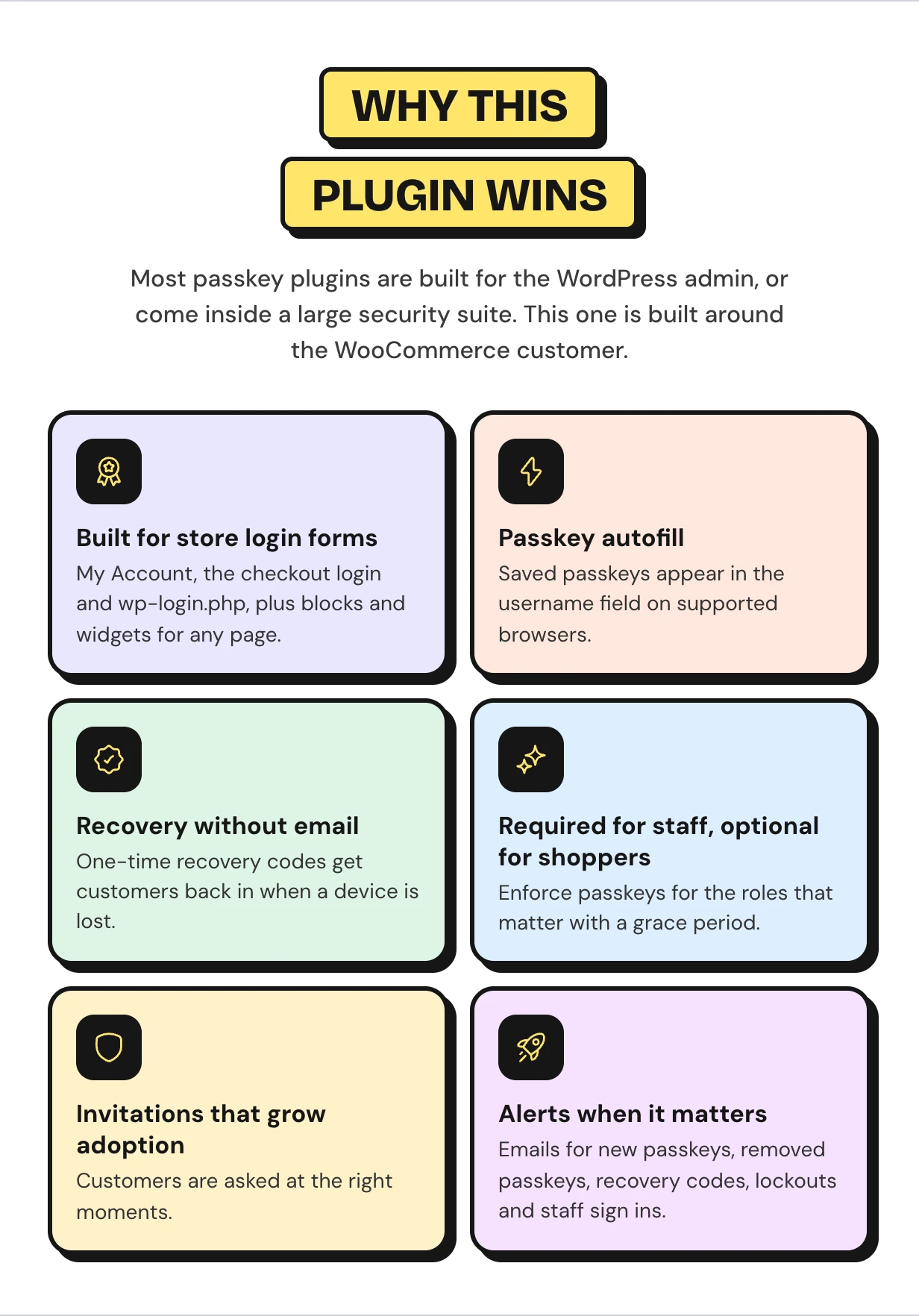
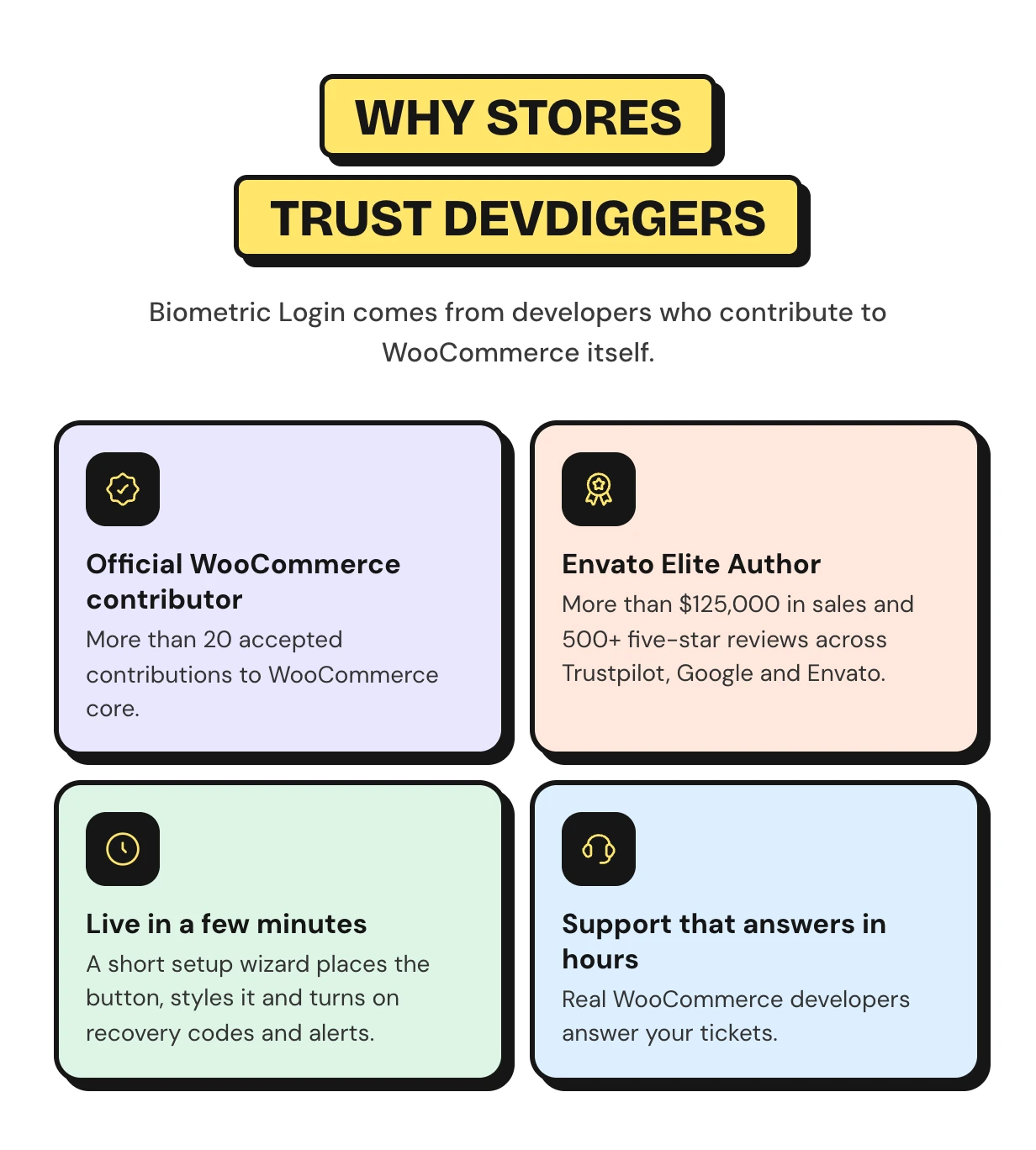
Why this WordPress passkey plugin is built for stores
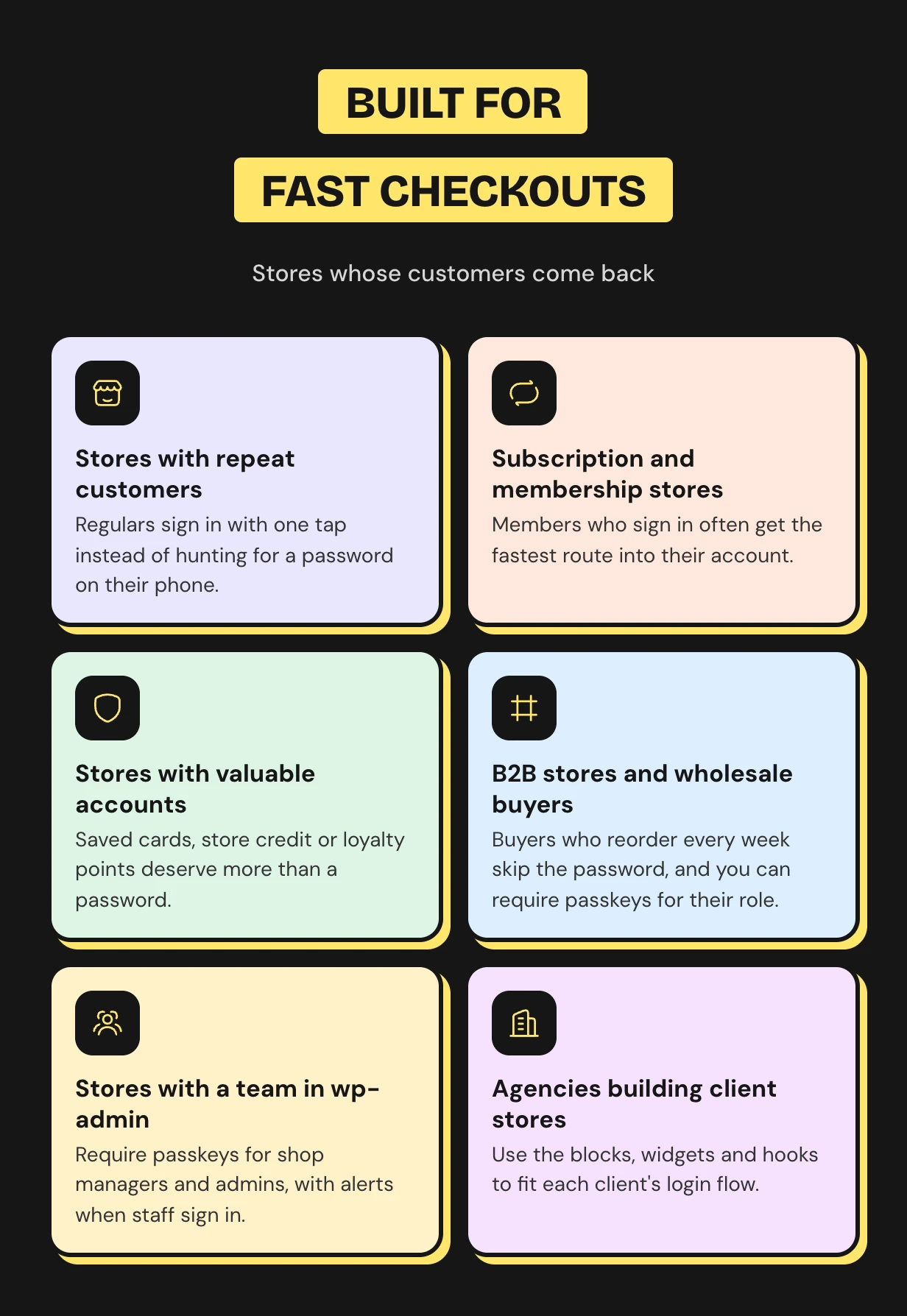
Who the biometric login plugin is for
What buyers say
Biometric login questions
What is WooCommerce biometric login?
It lets customers sign in with Face ID, Touch ID, Windows Hello, a fingerprint or a security key. It uses passkeys, the WebAuthn sign in standard built into current phones and computers.
How does biometric login work?
The device keeps a private key and your store keeps the matching public key. A fingerprint or face scan unlocks the key, and the device signs a one-time challenge that your store checks.
Is biometric login safe?
Yes. The fingerprint or face check happens on the device and is never sent to your store. A fake login page cannot use a passkey, because each one is tied to your domain.
Do customers need an app for Face ID login?
No. Passkeys are built into iPhone, iPad, Mac, Android, Windows and current versions of Safari, Chrome, Edge and Firefox. Your store needs HTTPS.
What happens if a customer loses their phone?
Passkeys saved in iCloud Keychain or Google Password Manager come back on a new device. Otherwise the customer signs in with a recovery code and adds a new passkey.
What about customers who never add a passkey?
They sign in with their password as before. Invitations after sign in, after registration and on the order received page help them add one.
Can I turn off passwords completely?
Yes, per role. With passkey-only sign in, a password stops working once the user has a passkey. Turn on recovery codes and add your own passkey first.
Does it work with the WooCommerce Checkout block?
The Checkout block has no login form of its own. It links to the My Account login, where customers find the passkey button.
What happens if I move my store to a new domain?
Passkeys belong to the domain they were made on. After a move, customers sign in with their password or a recovery code and add a new passkey.
Support and custom work
Support comes from the developers who wrote the code, usually within hours. Start with the Biometric Login documentation or contact our team. See every feature on the WooCommerce biometric login plugin page.
Need passkeys in a custom login popup or a mobile app? Our WooCommerce development services team builds custom sign in features for your store.
Requirements
- WordPress 6.5 or newer
- WooCommerce 9.0 or newer
Changelog
v 1.1.0 Added WooCommerce HPOS (High-Performance order storage) compatibility. Added compatibility with latest WordPress and WooCommerce. Added new hooks for the customization compatibility. Resolved security issues.
v 1.0.3 Added compatibility with latest WordPress and WooCommerce. Resolved security issues.
v 1.0.2 Added compatibility with latest WordPress and WooCommerce. Updated license API. Resolved security issues.
v 1.0.1 Added compatibility with WordPress 5.8.x and WooCommerce 5.6.x. Resolved security issues.
v 1.0.0 Initial Release
$99 |
Download |
4.9 average based on 11 ratings.

| Last Update | 2026-10-30 |
| Created | 2021-06-04 |
| Sales | 58 |
| Discussion | Comments |
| Compatible Browsers | Firefox Safari Opera Chrome Edge |
| Software Version | WordPress 7.0.x WordPress 6.9.x WordPress 6.8.x WordPress 6.7.x WordPress 6.6.x WordPress 6.5.x WordPress 6.4.x WordPress 6.3.x WordPress 6.2.x WordPress 6.1.x WordPress 6.0.x WordPress 5.9.x WordPress 5.8.x WordPress 5.7.x WordPress 5.6.x WordPress 5.5.x WordPress 5.4.x WordPress 5.3.x WordPress 5.2.x WordPress 5.1.x WordPress 5.0.x WordPress 4.9.x |
| Compatible With | WooCommerce 10.x.x WooCommerce 9.x.x WooCommerce 8.x.x WooCommerce 7.x.x WooCommerce 6.x.x WooCommerce 5.x.x |
| Gutenberg Optimized | Yes |
| High Resolution | Yes |
| Files Included | JavaScript JS CSS PHP |
| Video Preview Resolution |


