TrueMail Hunter v3.0 | Bulk Website Email Extractor for Lead Generation


TrueMailHunter v3.0 – Automatic Email Collector from Websites
Automatically scan hundreds of websites, instantly extract email addresses, and export them in TXT / CSV / Excel formats.
Extract emails from 1,000+ websites in a single run.
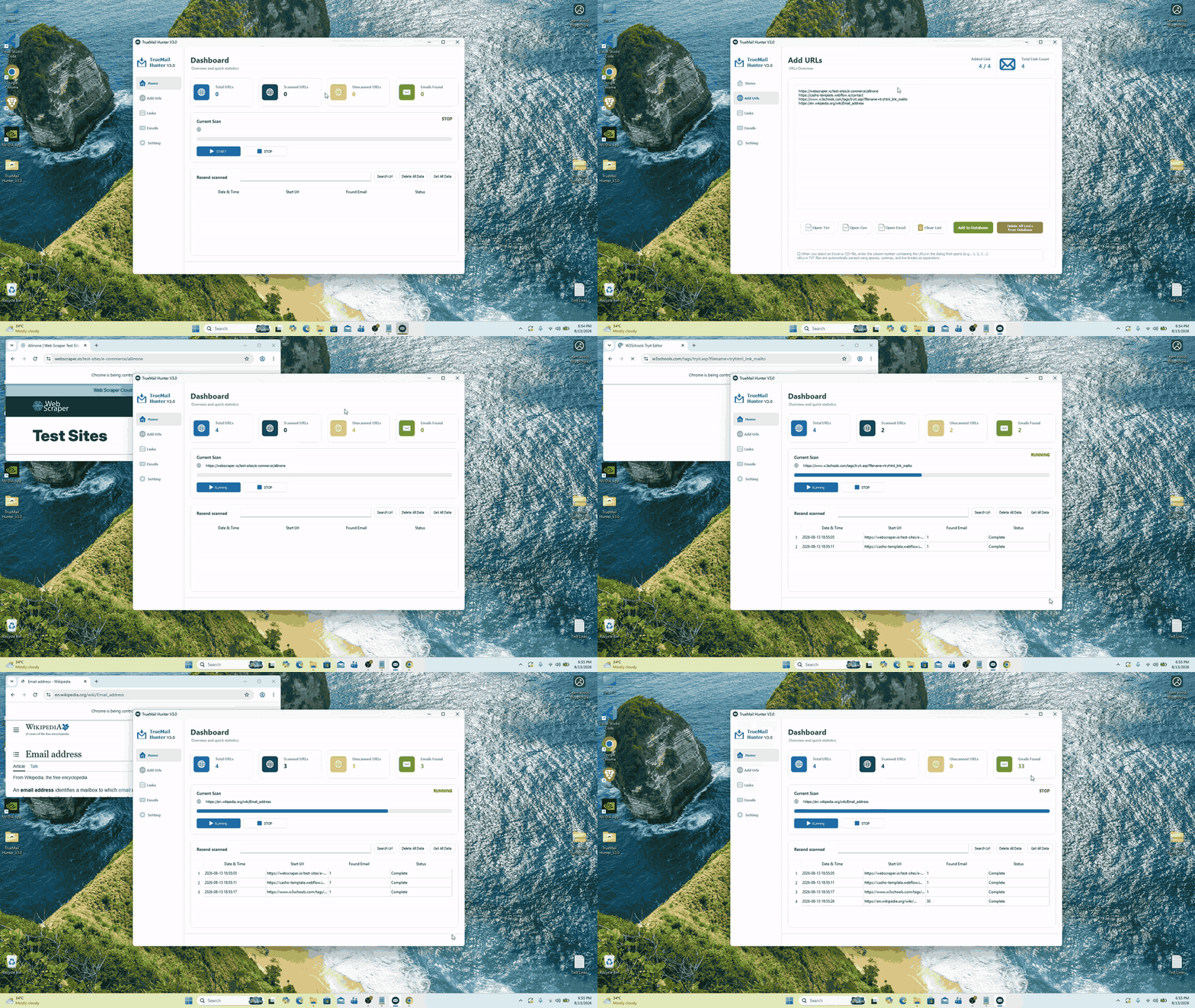
Home Page
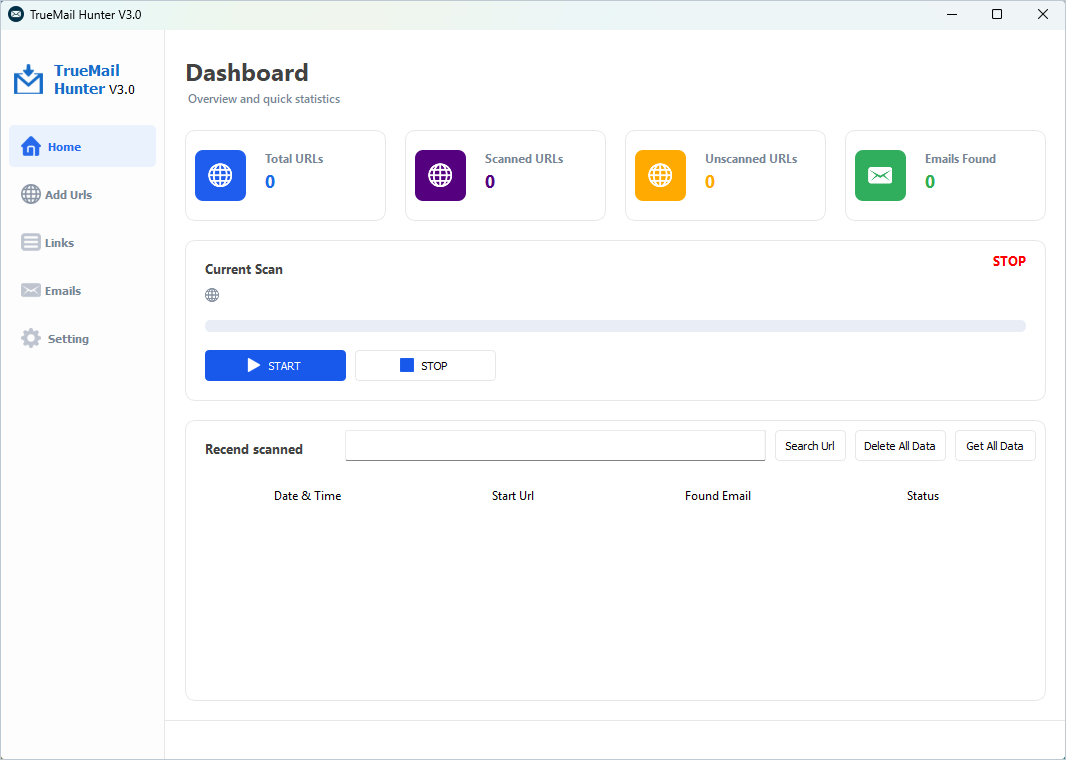
Add Urls Page
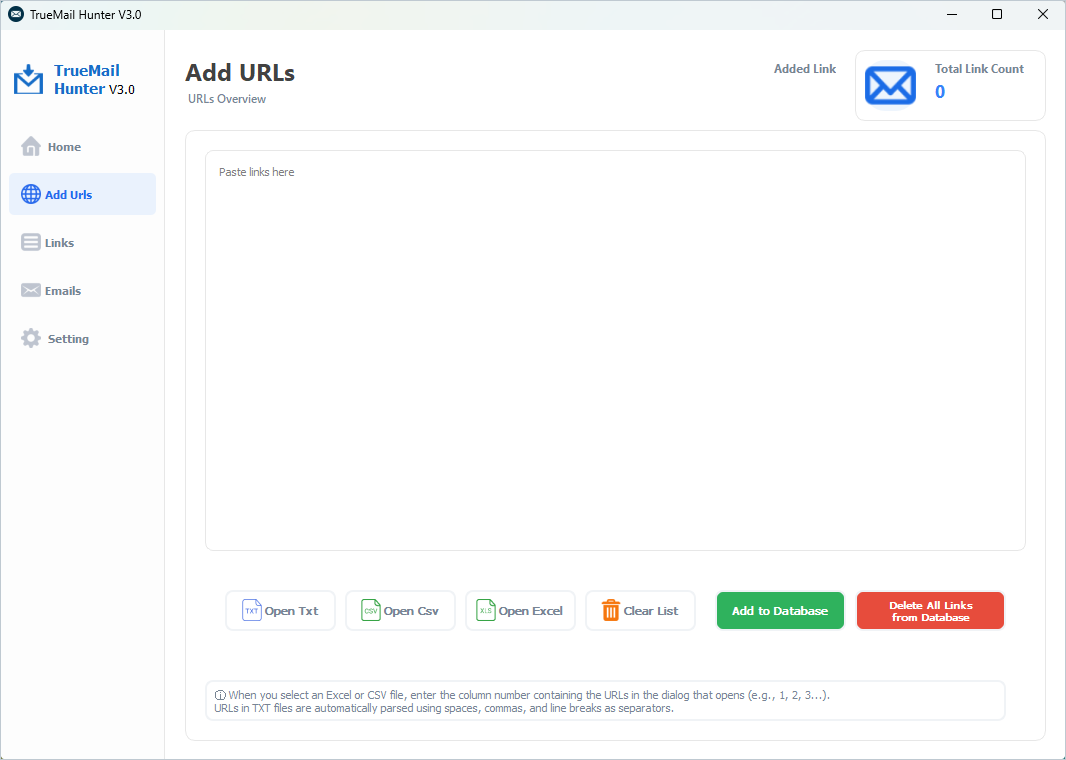
Links Page
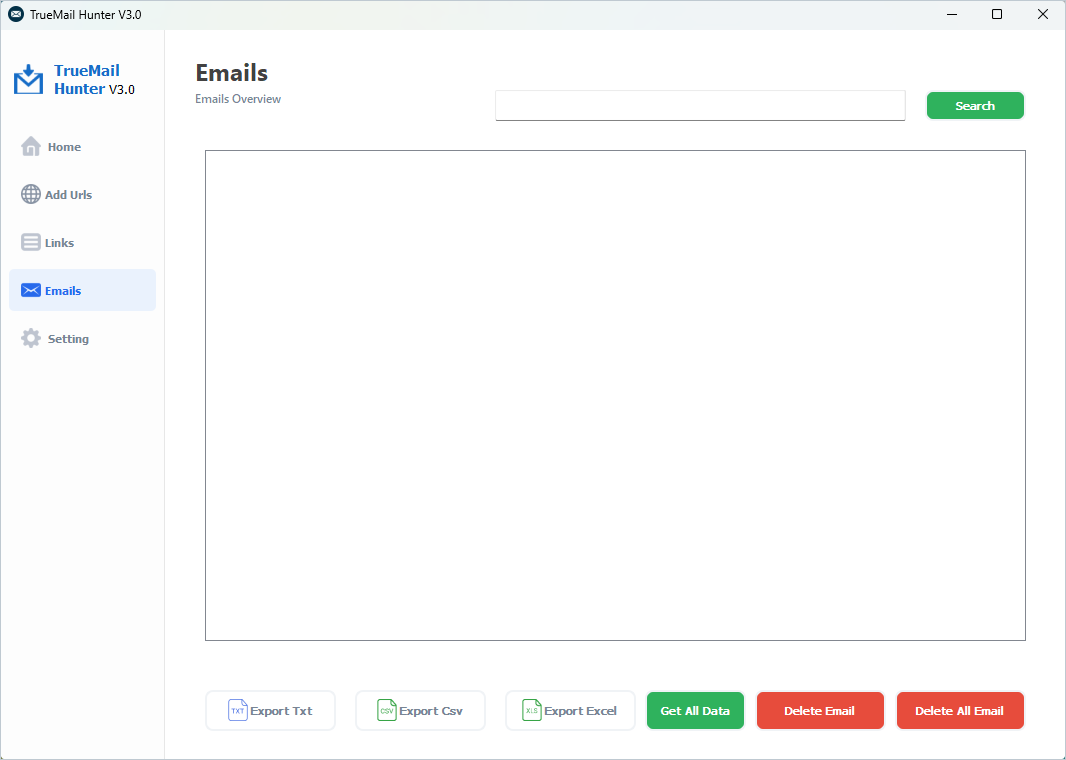
Emails Page
User-Agent API
TrueMail Hunter uses an external API to retrieve User-Agent data. The API is free to use and does not require any additional service fees.
Valid Email Examples:
See the Email Address – Wikipedia page for valid email address examples and syntax rules.
What Does It Do?
If you spend hours collecting email addresses from websites, TrueMailHunter is perfect for you. This powerful tool automatically extracts email addresses by scanning your URL lists in seconds, stores them in a database, and exports them in the format of your choice.
- Building a list of potential customers for digital marketers
- Preparing a mass communication database for agencies
- Collecting contact information in specific industries for researchers
- Finding supplier or business partner email addresses for e-commerce entrepreneurs
- Establishing contact to seek collaboration opportunities for content creators
Key Features
Advanced Email Extraction Engine
- Standard email regex engine — fast and accurate
- Parses hidden formats: [at], (at), {at}, [dot], (dot)
- Parses HTML entity codes: @ and .
- Parses URL-encoded characters: %40 and %2E
- Parse JavaScript string concatenations: “info” + “@” + “example.com”
- Direct email extraction from mailto: links
- Processing JavaScript-rendered pages with Selenium
- Duplicate check — the same email address is not recorded twice
Smart URL and Crawl Management
- Bulk URL upload from a TXT, CSV, or Excel (.xlsx) file
- Manual URL entry — paste directly into the text box
- URL validity check — invalid URLs are automatically filtered out
- Tracking of processed/unprocessed URLs — so you know where you left off
- Real-time progress bar and status label
- Automatic pause and reconnection when the internet connection is lost
- Scraping history log: date, URL, number of emails found, status
Bot Protection and Browser Settings
- Option to choose Headless (invisible) or visible Chrome mode
- Customizable User-Agent support
- Automatic loading of a live User-Agent list from the online API
- Selenium WebDriver + Chrome — JavaScript pages work seamlessly
- Page load timeout management
Export and Data Management
- Export to TXT format — one email per line
- Export to CSV format — UTF-8 BOM (Turkish character support)
- Export to Excel (.xlsx) format — including header column
- Email and URL search and filtering
- Single or bulk deletion operations
- Inline URL editing
- All data is permanently stored in an SQLite database — no external installation required
Why TrueMailHunter?
- Speed: Automatically scans multiple URLs in succession—it does the work for you.
- Intelligence: Finds even hidden email addresses that standard regex would miss.
- Ease of Use: Intuitive interface — no technical knowledge required.
- Security: All data is stored locally in SQLite; no data is sent outside.
- Portability: No installation required. Run the .exe file and get started right away.
- Continuity: It picks up where it left off even if the Internet connection is lost.
- Flexibility: TXT, CSV, Excel—it exports to whatever format you need.
Technical Information
- Platform: Windows 7 / 8 / 10 / 11
- Programming Language: Python 3.x
- UI Library: PyQt5
- Browser Engine: Selenium WebDriver + Google Chrome
- Database: SQLite (local, no external installation required)
- Asynchronous Processing: asyncio + aiohttp + qasync
- Export: TXT / CSV (UTF-8 BOM) / Excel (.xlsx)
- Requirements: Only Google Chrome must be installed
Installation — Quick Start
- Extract the ZIP file to your computer.
- Double-click the TrueMailHunter.exe file.
- If you see a Windows SmartScreen warning, read the Security Note below.
- Make sure Google Chrome is installed.
- Add your URLs, click Start — emails will be collected automatically.
Frequently Asked Questions
Q: Is the application affected by Google Chrome updates?
A: No. The application automatically manages the ChromeDriver required for browser automation, helping ensure compatibility with your installed version of Google Chrome. You do not need to manually download or update ChromeDriver.
Q: Do I need to install or update ChromeDriver manually?
A: No. The application handles ChromeDriver management automatically, reducing the need for manual setup and maintenance.
Q: Is the application safe to use?
A: Windows SmartScreen may display a warning because the application is unsigned. This warning alone does not mean the application contains a virus. If you see this warning, verify that you downloaded the application from the official source before proceeding.
I’m getting a virus warning—is the app safe?
Yes, it is definitely safe. It has been scanned and found to be clean. Windows SmartScreen displays this warning for all software that lacks a code-signing certificate. You can safely run it by clicking “More info” and then “Run anyway.”
What types of websites are supported?
Static HTML sites and dynamic sites created with JavaScript (using Selenium/Chrome) are supported.
How many URLs can I add?
Technically, there is no limit. Database capacity is limited by the disk space on your system.
What operating system is required?
Windows 7, 8, 10, and 11 are supported. 64-bit is recommended. Google Chrome must be installed.
What happens if the internet connection is lost?
The application automatically pauses and resumes from where it left off once the internet connection is restored.
Are there any issues with Turkish characters in CSV files?
No. CSV files are saved in UTF-8 BOM format and can be opened directly in Excel.
Support and Contact
If you encounter any issues, you can contact us via the comments section on the CodeCanyon product page or through the “Support” tab. Responses are typically provided within 1–3 business days.
- Submit a support request via the CodeCanyon “Comments” or “Support” tab.
- Follow the product page for updates.
0 average based on 0 ratings.

| Last Update | 2026-10-07 |
| Created | 2025-06-06 |
| Sales | 8 |
| Discussion | Comments |
| Application Runtime | Native |
| High Resolution | |
| Compatible OS Versions | Windows 11 Windows 10 Windows 8 Metro Windows 8 Desktop Windows 7 |
| Video Preview Resolution |


