Harbour VPN | Windows Desktop Client


Harbour VPN | Windows Desktop Client
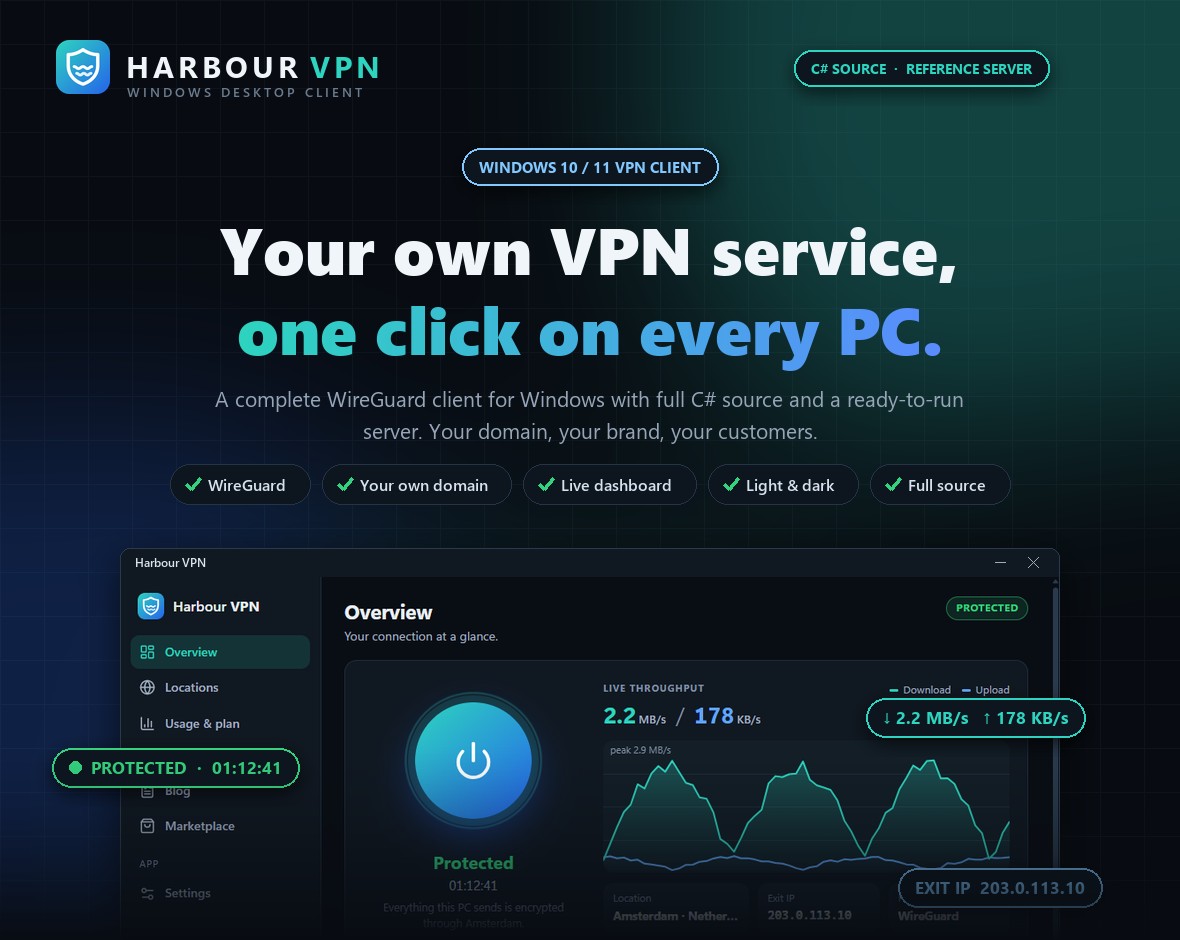
Harbour VPN is a complete VPN client for Windows 10 and Windows 11, with full C# source code and a ready-to-run reference server. Your customers install one small program, sign in with their account and connect with a single click: the app creates its own WireGuard keypair on the PC, installs its network service once and then connects and disconnects without further prompts. A modern dashboard shows live download and upload speed, the exit IP address, the data used this period, every location, the account’s devices and plans, and optional blog, store and newsletter tabs fed by your own website. Point it at your own domain from the Settings screen, rename it, recolour it and ship it under your brand.
Demo Instructions
Try the real app on Windows 10 or 11, connected to a live demo VPN service
Demo download: https://demo.alphaxp.net/Evanto/HarbourVPN/HarbourVPN-Demo.exe
Server address: built into the demo build (api.alphaxp.net) — nothing to type
Email: harbourdemo@alphaxp.net
Password: Harbour-Demo-2026
- Download and run the demo build. It isn’t code-signed, so Windows SmartScreen asks first: choose More info, then Run anyway.
- Sign in with the email and password above, either in the app or with Sign in in your browser.
- Click the power button and approve the one-time Windows prompt that installs the network service. The status turns to Protected, the live chart starts and the exit IP changes to the demo server’s address.
- Explore Locations, Usage and plan (history, devices, plans) and Settings, where Server shows how your customers would enter your own domain.
- When you’re done: Settings, then Remove Harbour VPN from this PC uninstalls everything.
The demo account is on the Free plan (1 GB per week, one device). If another PC is holding the device slot, remove it under Usage and plan, then connect again. Plain e-mail sending (port 25) is blocked on the demo service.

Important: Harbour VPN is the Windows client plus a reference server for one WireGuard location. It is not a hosted VPN service: you run the server on your own VPS (the step-by-step guide is included), and you decide how accounts and plans are sold. Hosting, a domain and any payment provider are separate costs, paid by you to those providers.
Important – External Service Costs (please read before buying)
The app and the reference server are included. The infrastructure they run on is not. To run your own VPN service you will need:
- A VPS or dedicated server for the VPN (for example DigitalOcean, Hetzner, Vultr or Linode), billed monthly by the hosting provider.
- A domain or subdomain for the server address (for example vpn.yourdomain.com), from any registrar. The HTTPS certificate is free through Let’s Encrypt.
- Optional: a payment provider (for example Stripe or PayPal) if you want to sell plans, with that provider’s transaction fees. The reference server only links to a checkout page you provide.
- Optional: a code-signing certificate (for example from DigiCert or Sectigo) so Windows SmartScreen trusts the program you distribute.
These are billed to you by those providers and NOT included in the item price. Documentation/backend-api-setup.html walks through the server setup from an empty Ubuntu VPS.
Key Features
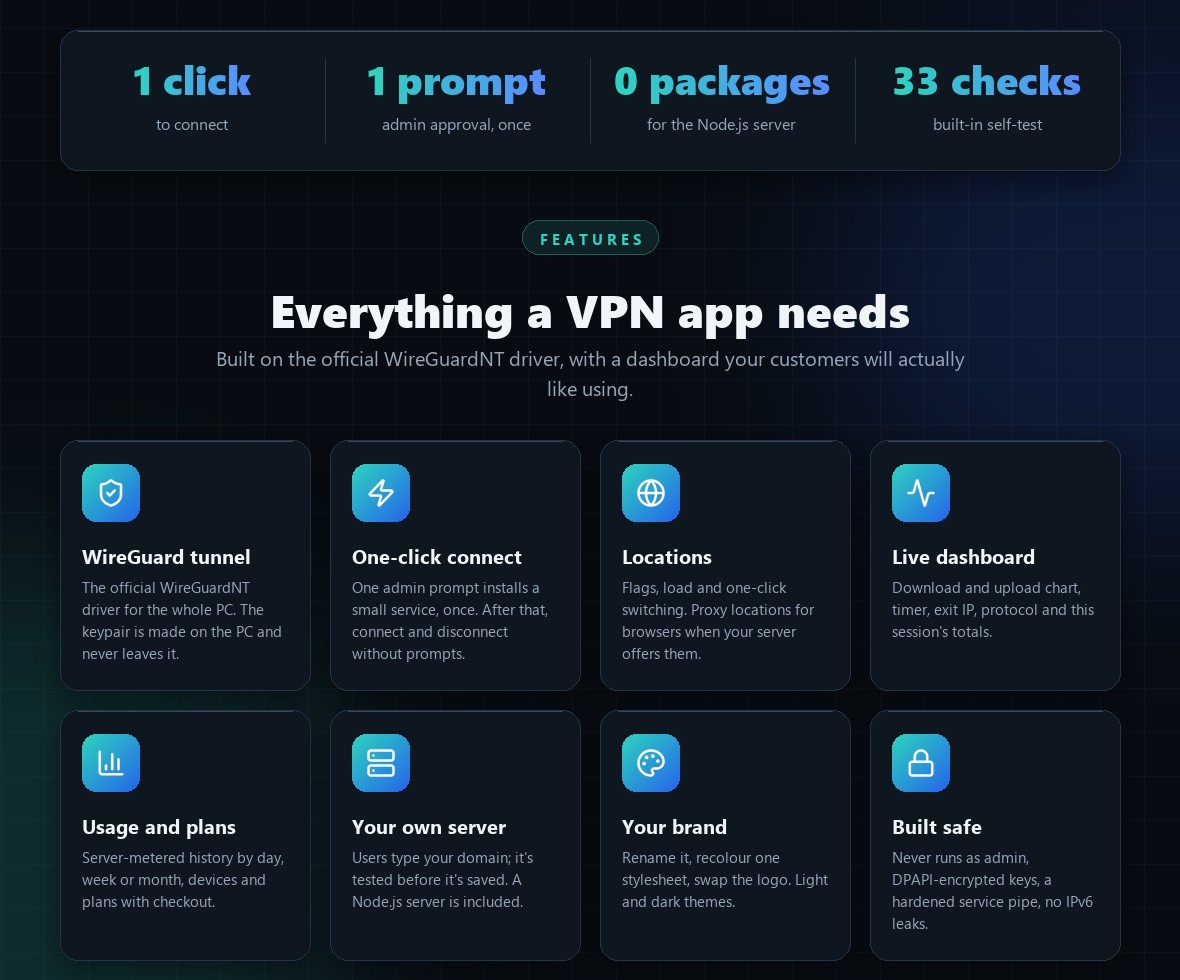
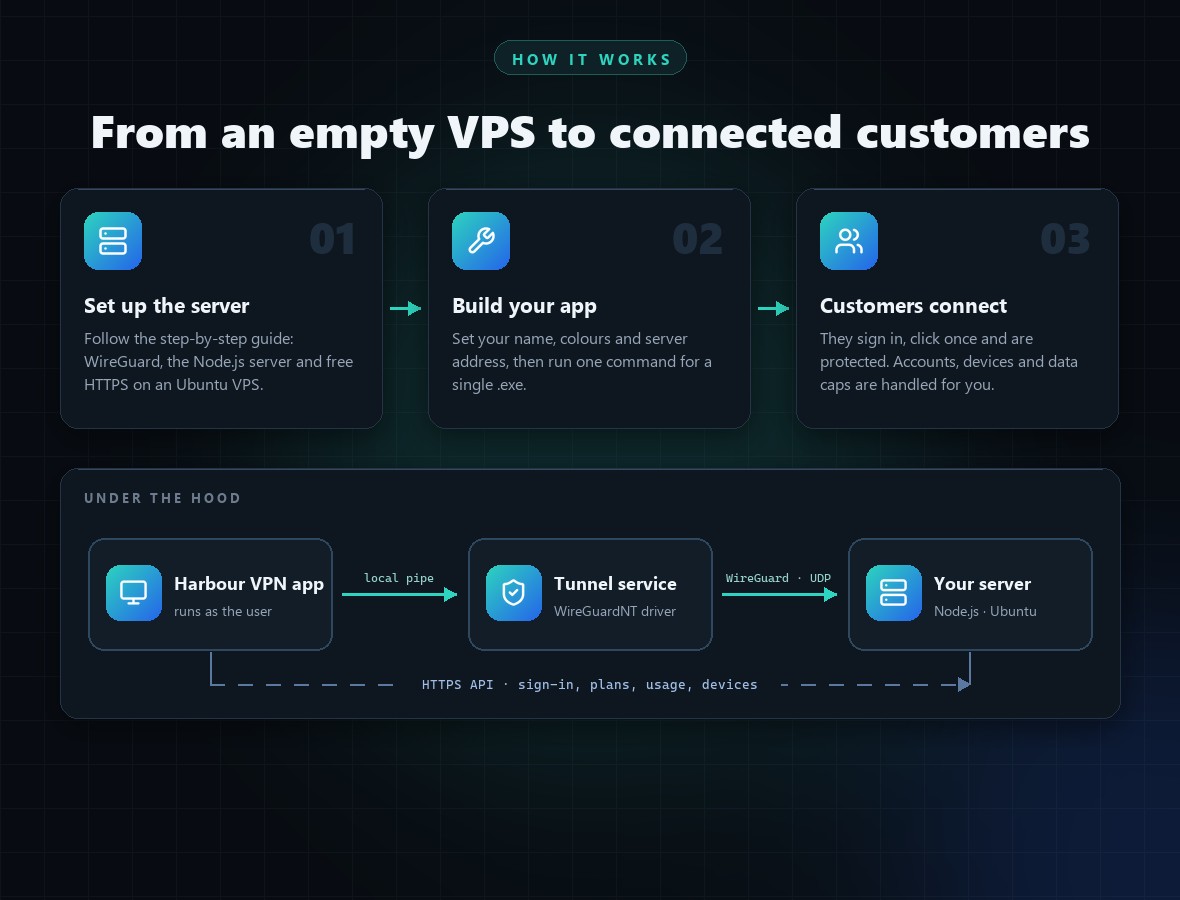
- Full-PC VPN tunnel on the official WireGuardNT driver, with the keypair created on the PC (the private key never leaves it, and is encrypted with Windows DPAPI)
- One UAC prompt, once: a small Windows service runs the tunnel, so connecting needs no admin rights afterwards
- “Protected” only after a real handshake with the server, with a plain warning when a network blocks VPN traffic
- Leak guard while connected: DNS can only reach the tunnel’s own resolvers and IPv6 is blocked by Windows Firewall rules the service adds and removes itself (no WFP driver, nothing left behind)
- Live download and upload chart (last two minutes), session totals, timer, exit IP and protocol
- Location list with flags, load and one-click switching; proxy locations for browsers when your server offers them
- Account view: plan, data used and left, usage history by day, week or month, devices with remove, plans with checkout in the browser
- Sign-in in the browser (two-step verification friendly) or with email and password
- Server address in Settings: users enter your domain, and the address is tested before it is saved
- Optional Blog, Store and Newsletter tabs that read one JSON file on your website
- Tray icon with connection status, Start with Windows, connect on start, light and dark themes, compact layout
- Clean uninstall from Settings or Windows Apps and features
- Node.js reference server with no dependencies: accounts, devices, data caps, usage metering, browser sign-in page, systemd unit

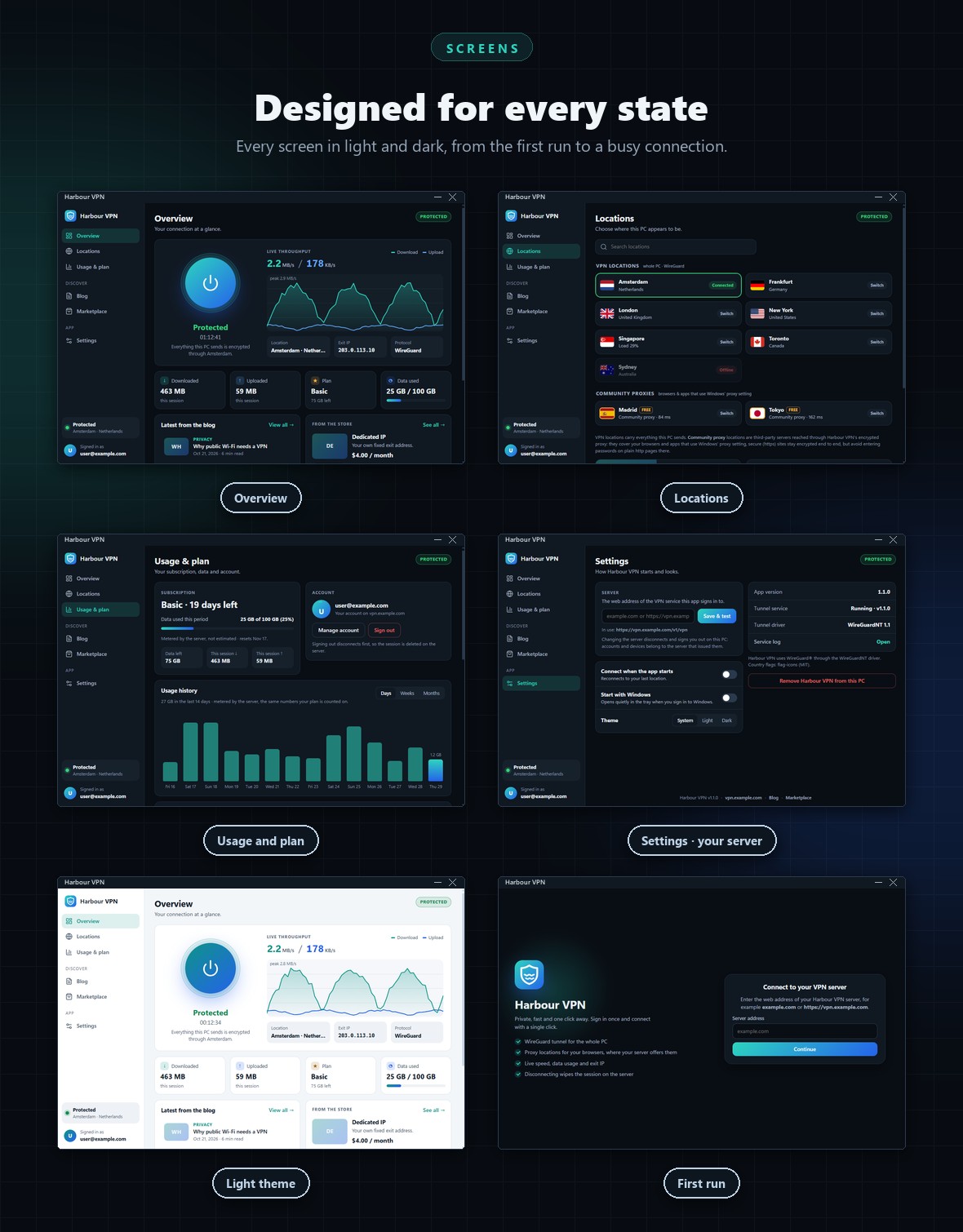
Screens Included (9)
- Server address (first run)
- Sign in (browser or email and password)
- Overview with live chart
- Locations
- Usage and plan (history, devices, plans)
- Blog
- Store
- Settings
- Browser sign-in page served by the reference server
What You Get
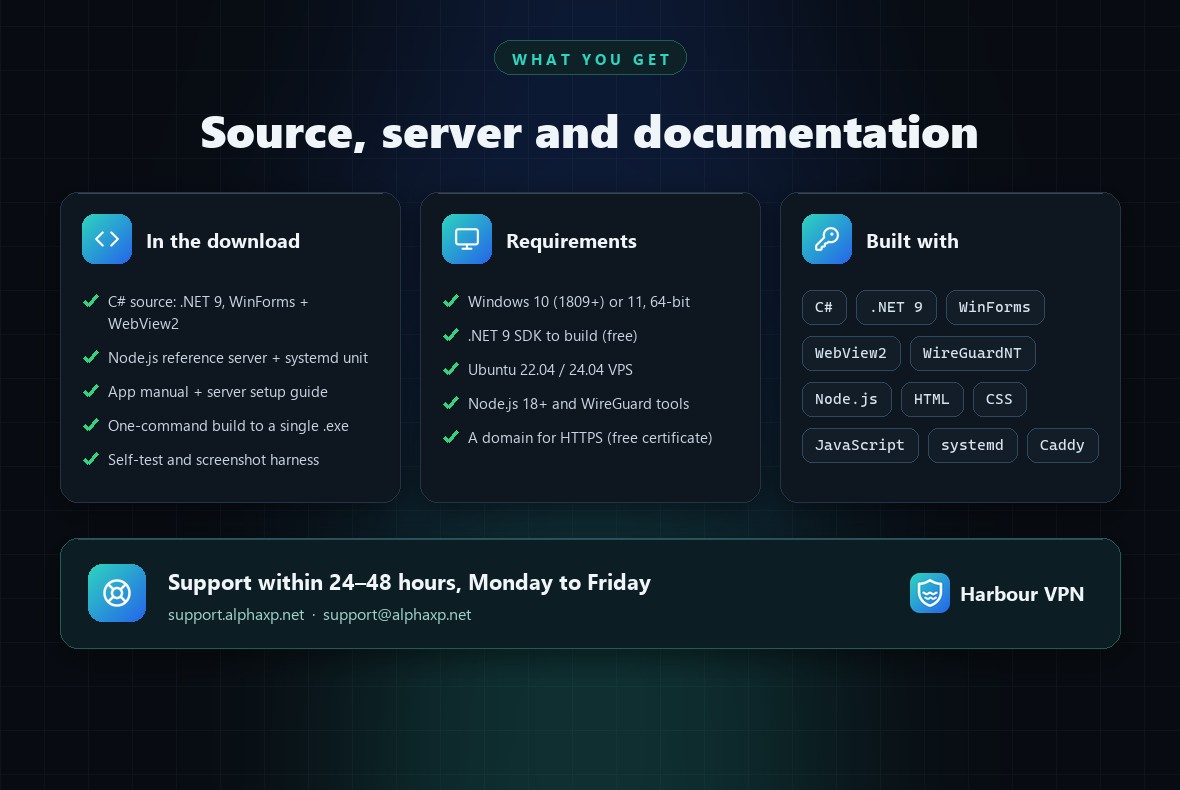
- Full C# source of the Windows app (Visual Studio 2022 or the .NET 9 SDK), with a one-command build script that produces a single self-contained .exe
- The Node.js reference server, an example configuration and a systemd unit
- HTML documentation for the app, and a separate step-by-step server installation guide
- A built-in self-test (33 checks) and a screenshot harness for your own QA
Requirements
- Users: Windows 10 (version 1809 or later) or Windows 11, 64-bit, with the Microsoft Edge WebView2 Runtime (built into Windows 11 and current Windows 10)
- Building: the .NET 9 SDK (free), or Visual Studio 2022 version 17.12 or later
- Server: a VPS with Ubuntu 22.04 or 24.04, a public IPv4 address, Node.js 18 or later, WireGuard tools, and a domain for HTTPS
Easy to Customize
The whole interface is plain HTML, CSS and JavaScript inside the app, so changing colours is a matter of editing a few design tokens at the top of one stylesheet. The name, icon, default server address and version live in a handful of clearly marked places, all listed in the documentation’s Branding chapter.
Support and Updates
Questions about installing, building and customizing Harbour VPN are answered at support.alphaxp.net or support@alphaxp.net, within 24–48 hours, Monday to Friday. Updates are delivered through your Envato downloads page.
AI Disclosure
AI tools assisted with parts of the code, the documentation and the preview graphics. Every feature was reviewed and tested on Windows 11, and the client was tested against the included reference server. Harbour VPN has no AI features of its own and calls no AI service.
0 average based on 0 ratings.

| Last Update | 2026-11-19 |
| Created | 2026-11-19 |
| Sales | 0 |
| Discussion | Comments |
| Application Runtime | .NET 4 |
| High Resolution | No |
| Compatible OS Versions | Windows 11 Windows 10 |
| Video Preview Resolution |


